Did you know?
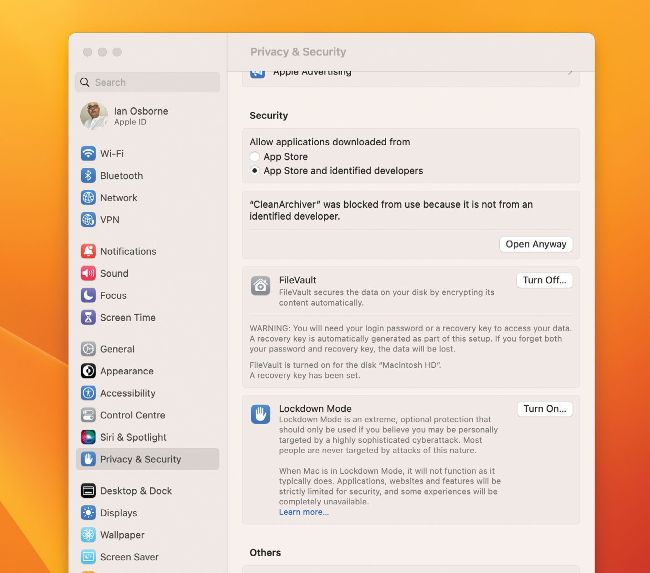
If you get the alert (below), grant permission in Privacy & Security.
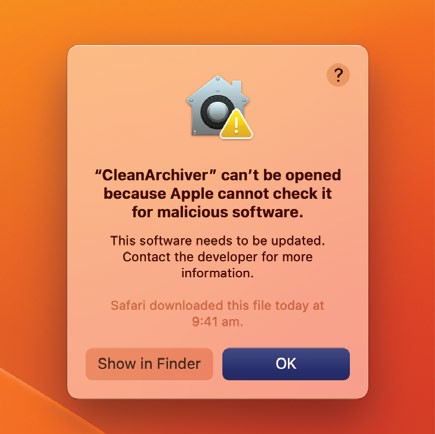
Apple will alert you if it thinks software needs to be updated.
To help keep your Mac safe, it won’t open apps unless they’re downloaded from either the Mac App Store or from an identified Apple developer. This is to stop malicious apps installing viruses and other malware on your Mac. But if you get a message saying an app you downloaded can’t be opened (but you’re sure you can trust the developer), you can open it using the following procedure.
Go to > System Settings (Ventura) or System Preferences (Monterey or earlier), then head to Privacy & Security, and find the Security section. Here, make sure your Mac is set to open apps from ‘App Store and identified developers’. There’s a message here about the last app you tried to open that was blocked. If – and only if – you’re sure the app is legitimate, click the Open Anyway button to open it.
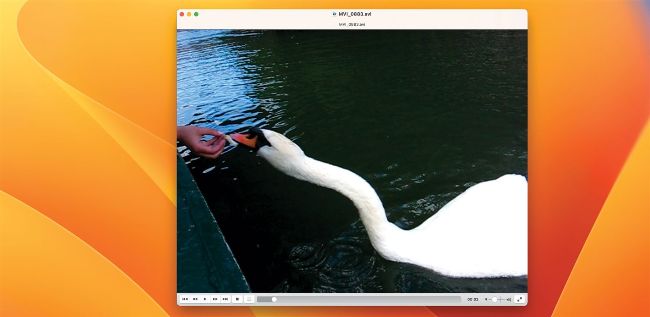
There’s very little that the free VLC media player can’t play.
Image credit: VideoLAN
VLC
> FROM
videolan.org
> NEEDS Mac OS X 10.7.5 or later
If
your
video
file
won’t
play,
then
you
can
launch
VLC.
It
can
probably
handle
it. It’s not the prettiest of video players and is unlikely to become your favourite, but when it comes to sheer versatility and comprehensiveness, it deserves a place on your hard drive as a backup. Available for just about any computer or mobile device from videolan.org and the Mac App Store/ App Store, all you need to do is simply drag your media into the VLC window to start it playing. It has handy streaming capabilities too, including from local NAS drives, but there are easier ways of doing this.