PART 2 OF 3
Go even further with iMovie
Explore advanced editing tools such as titles, transitions and compositing
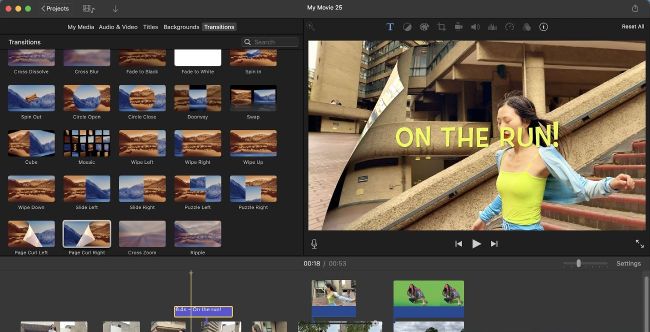
Image credits: Apple Inc, George Cairns
IT WILL TAKE 15 minutes
YOU WILL LEARN
How to add titles and transitions, and combine layers via green screen
YOU’LL NEED macOS iMovie 14.6 or later
Genius tip
Try to light a green screen backdrop evenly to avoid capturing varying shades of green that may not become completely transparent in the edit.

Post-production assets, such as transitions, are the icing on the cake of your edited movie.
In part one of our macOS iMovie series (
#MF424
), we demonstrated how to import long, rambling clips, trim their duration to only show the good bits, and rearrange them in iMovie’s non-linear timeline. This enabled us to tell a more succinct story before sharing the edited footage to social media. In part two, we’re showing you how to harness iMovie’s slick suite of post-production tools to make your edited footage even more entertaining and professional. By adding titles or captions, you can include extra information in your footage to keep your audience in the picture, so to speak. Transitions such as dissolves and wipes help blend a series of cut-together clips into a more smoothly flowing narrative, plus they help add an extra level of visual variety.