Desktop & screen savers
These awesome landscapes look amazing on a Mac’s Retina screen
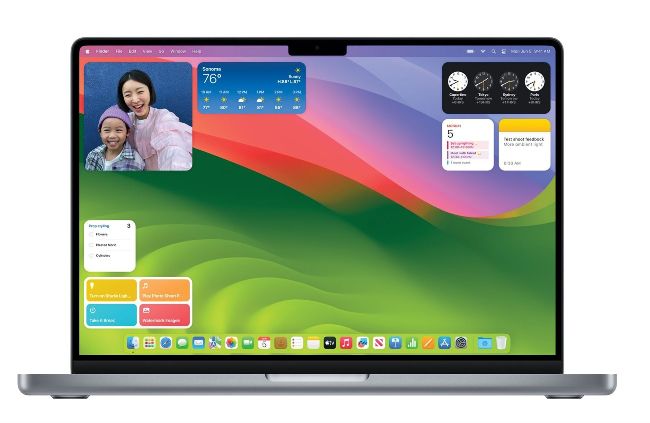
In macOS Sonoma, widgets can be taken out of the Notification Centre and placed on the Desktop. When you’re doing something else on your Mac, they fade into the background to avoid distractions.
The way the Mac uses widgets has had a very welcome overhaul. In previous versions of macOS, you had to open the Notification Centre by clicking on the time and date in the menu bar. In macOS Sonoma, you can drag them out of the Notification Centre and place them anywhere on the desktop. You can then review the information they offer at a glance.
So they don’t distract, when you open an app on your Mac, the widgets blend into the background, intelligently lifting colour from the wallpaper behind them. It’s easy to get back to the widgets. All you have to do is click on the desktop, and application and Finder windows are then pushed to the edges of the screen, just like they are when you do a four-finger spread gesture on a trackpad. Your widgets are then easy to see. Naturally, clicking on a widget (whether its diminished or not) opens its parent app. And thanks to Continuity, widgets from your iPhone are also available on your Mac.