67 AMAZING iPHONE SECRETS
Are you getting the most from your iPhone? Let’s take a look at some great advanced tips and tricks
WRITTEN BY IAN OSBORNE
WHETHER YOU’RE NEW to iPhone, a recent upgrader or have owned an Apple smartphone for several years, this guide takes a deep dive into some must– try tips, tricks and secrets that take your iPhone– owning experience to another level — and also makes you the envy of all your Android–using friends!
Even if you’re an experienced iPhone user, there might be features offered by its apps and the iOS 17 operating system of which you’re not aware. That’s what we’re looking at here. Did you know, for example, that swiping an email left or right in the iPhone’s Mail app reveals additional options? Or that you can unsend messages
and emails after you’ve sent them? Or that you can identify features in photographs and automatically look up information on them? Or that you can add a link to a note in the Notes app, so you can tap it and be taken directly to another note? Or that in the Safari web browser, you can opt to listen to a page instead of reading it? With our help, you can do all these things and more.
Whether you use your iPhone as a work phone or purely for personal use, whether you’ve got it new for Christmas or have had one for years, and whether you use its full range of apps and features or just stick to a handful of regular handy tools, there’s something here for you.
Mail, Messages, Notes & FaceTime
Handy hints and features you might not know…
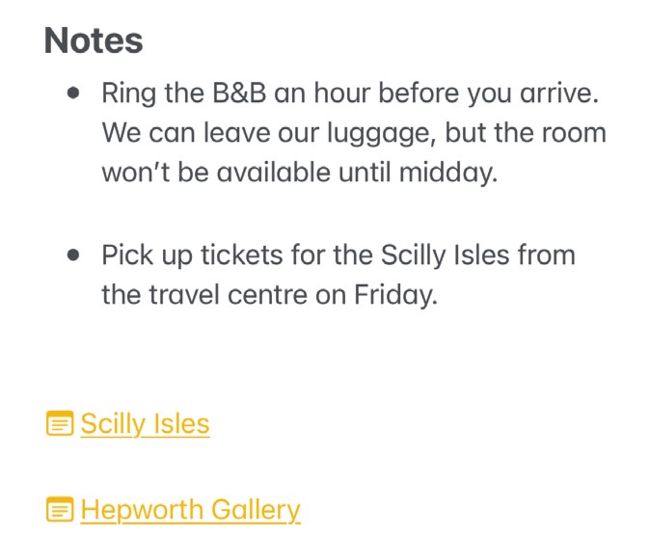
Add links to notes to keep all your important info in one place for easy access.
APPLE’S KEY COMMUNICATION and note–taking apps have some awesome features. In the iPhone’s email client, Mail, for example, you can swipe an email message right to access more options; tap the Unread icon to mark that email as unread, or tap Remind Me to set up a reminder about the email, so you can deal with it later. If you swipe that email left, different options present themselves. Tap the Trash icon to delete it, the Flag icon to mark it with a flag or More for an options window that lets you reply, forward, archive the message and more, without actually opening it.
TAKE NOTE
The Hide My Email feature lets you send an email without giving the recipient your email address. Before you send it, tap the From field to open the CC and BCC fields. Tap the From field a second time and you can choose which email account you can send it from, or tap Hide My Email to create a random address that forwards to your mailbox. To schedule an email instead of sending it straight away, instead of tapping the Send icon, long– press it for a menu with sending options. Tap Send Later… and choose a date and time for it to be sent on. To format emails, when typing a message, tap the chevron on the top–left of the keyboard and then tap the “Aa” icon for the formatting controls.
In a note in the Notes app, you can add a URL or a link to another note. In the note, tap and hold where you want the link. In the menu, tap the chevron then choose Add Link. You can then add the URL or the title of the note you want to link to, and choose link text for it if you wish. When in an app, tap the Share icon (rectangle with an arrow pointing up) and choose Add to New Quick Note and you copy whatever it is you’re looking at to a quick note. Add text if you want, and tap Save; the note is then available in the Notes app.
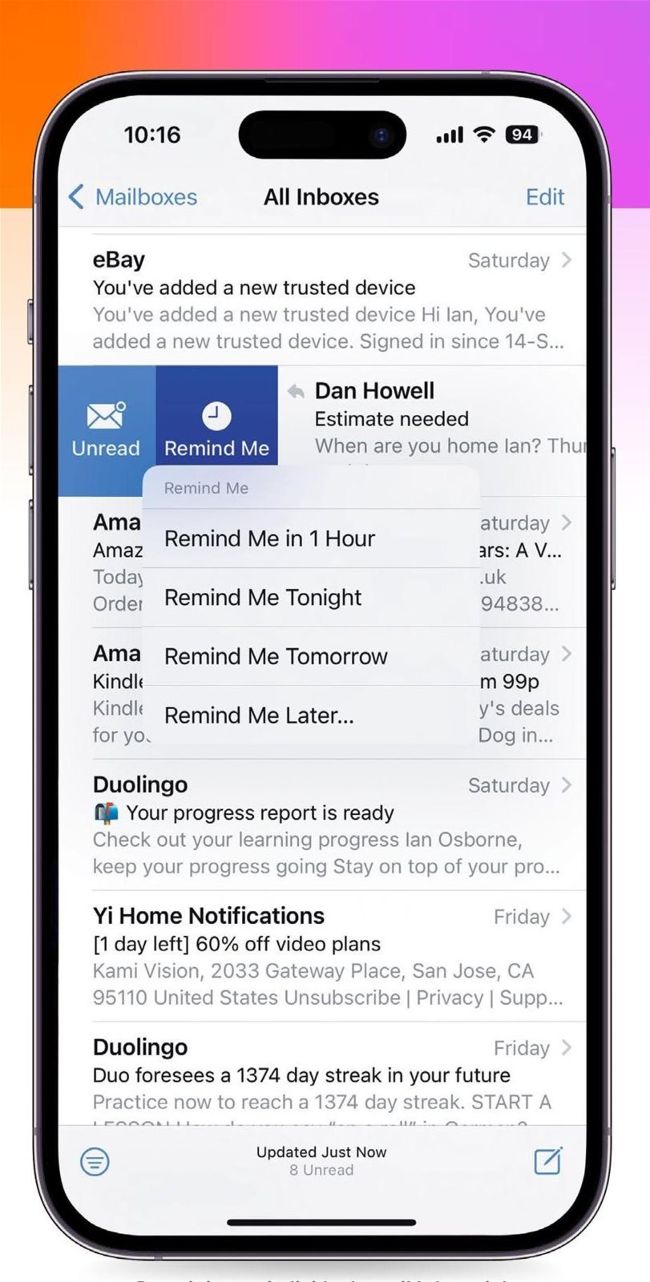
By swiping an individual email left or right, you can access a range of new options.
HOW TO Send animated Reactions with gestures in a video call
1 Thumbs up/down
In video chat, including FaceTime, you can summon some great graphical effects with hand gestures. For example, if you make a thumbs up or thumbs down with one hand, you get a bubble showing a similar gesture.
2 Two thumbs up/down
Make that thumbs up gesture with two hands, and you get an exciting fireworks display that fills the screen. Make a thumbs down gesture with both hands and you get a rain shower. Hope the weather in real life is better.
3 Hearts
Make a heart gesture with both hands by placing your thumbs and the tips of your forefingers together to make a heart shape. A spray of hearts flies from your hands — it’s a great way to appreciate the person you’re chatting to.
4 Peace
Make a peace sign, a “V” with your forefinger and middle finger up and your palm pointing outwards, for a bunch of balloons rising up the screen. It’s party time — now you can celebrate without leaving your seat.
5 Double peace
Make a peace sign with both hands and you get a spray of confetti falling from the top of the screen. As with all these gestures, make sure your hand or hands are wholly visible to the camera or the graphics might not appear.
6 Horns
Make the horns, with the little finger and forefinger extended and the other fingers and your thumb folded in, with both hands. On the screen, you’ll get a great laser display in a range of flashing colors. It looks amazing.