Can man live by iPad alone?
Could you really ditch your Mac in favor of Apple’s tablet?
WRITTEN BY DAVID CROOKES
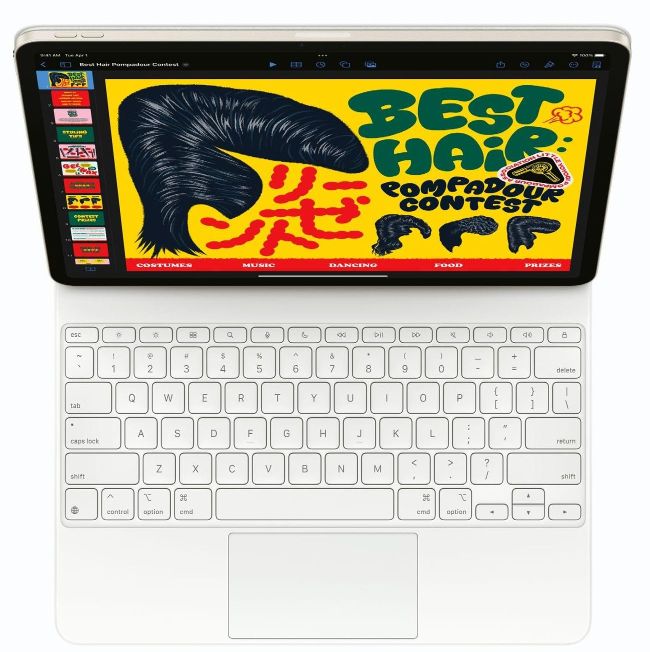
Image rights: Apple Inc
WHEN I PURCHASED my most recent iPad Air, I always envisioned that it would be used in various ways. It’s why I also bought a Smart Keyboard Folio — a device that has since been replaced by the superior Magic Keyboard Folio with its extra line of function keys and a trackpad — along with an Apple Pencil. This was going to be an iPad used for work, creativity, and entertainment.
Yet, I admit that I haven’t really got stuck into the work side of things using an iPad. I tend to use a MacBook on my travels and a Mac mini in the office, so ditching both for a full week did fill me with some trepidation. Would it slow me down? Would I become frustrated if key features that power me through the week are missing? But then I remembered Apple’s tagline for iPadOS 26 — “Work. Flows.”
MONDAY
The idea here was that I wouldn’t touch my Mac for a week, so I needed to ensure I had my important files to hand. This was as simple as firing up the Mac and going to Apple menu > System Settings > [username] > iCloud > See All, at which point I could use the toggles to sync apps such as Pages and Numbers. I also clicked iCloud Drive and made sure that “Sync this Mac” and “Desktop & Documents Folders” were active. Next, on the iPad, I opened Settings, selected my [username] > iCloud > iCloud Drive, and ensured everything I needed was synced there, too.
With the Mac powered down, I decided to write this article using Pages and take advantage of the changes made with iPadOS 26. I liked the idea of the new Screen View that strips away distractions, such as page count and numbers, although I did choose to add the Word Count tool.
I normally use LibreOffice on the Mac, and found a relatively blank screen to be motivating and focused. Yet, I found myself working slower; the keyboard, while feeling like a Mac laptop’s, is a little too cramped for me. That’s to be expected, given its size, but I made more typos than usual.
Fortunately, there are ways to improve your prose and speed up your workflow. Most recent iPad models are capable of using Writing Tools to compose, proofread, and rewrite text, although I don’t use them for professional writing. It’s also possible to use Apple Pencil to handwrite text and make edits, which certainly came in handy. Being able to scribble words, sentences, and paragraphs was a joy, and I found the iPad Air was more than capable of deciphering handwriting that looked like a scrawl. My workflow began to get faster, and I started to see the merit of Pages with fresh eyes.
HOW TO Multitask on iPad
1 Enable multitasking
Choose how you want apps to appear by going to Settings > Multitasking & Gestures. If you select Full Screen Apps, you’re effectively saying “no” to multitasking. We suggest Windowed Apps.
2 Use the grab handle