Personalize your Mac
New ways for your Mac to match your style
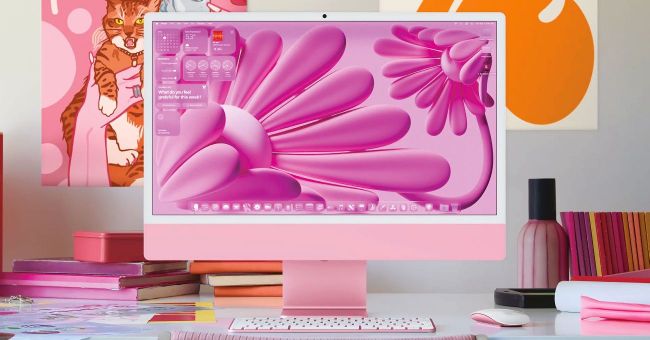
With a custom desktop wallpaper, colored folders, and the new Liquid Glass interface, you can really make your Mac stand out.
TAHOE BRINGS NEW ways to customize your Mac. Finally, a feature that’s previously only been made possible by third–party apps — and long overdue as part of macOS — is the ability to change the color of your folders, and also badge them with an icon or emoji. There are eight colors to choose from, including the traditional blue design. Keeping different jobs in different–colored folders is great for projects.
Another way to personalize your desktop is to change the style in which the icons and desktop widgets are presented. In Settings, click Appearance, and look for Icon & Widget Style. Here, you can change the default look to Dark, Clear, or Tinted. As tinted icons are themed to match your wallpaper, it’s a great way of making your Dock look a part of the desktop.