iOS 27 SUPER GUIDE
Must–try tips, tricks, & secrets
WRITTEN BY CARRIE MARSHALL
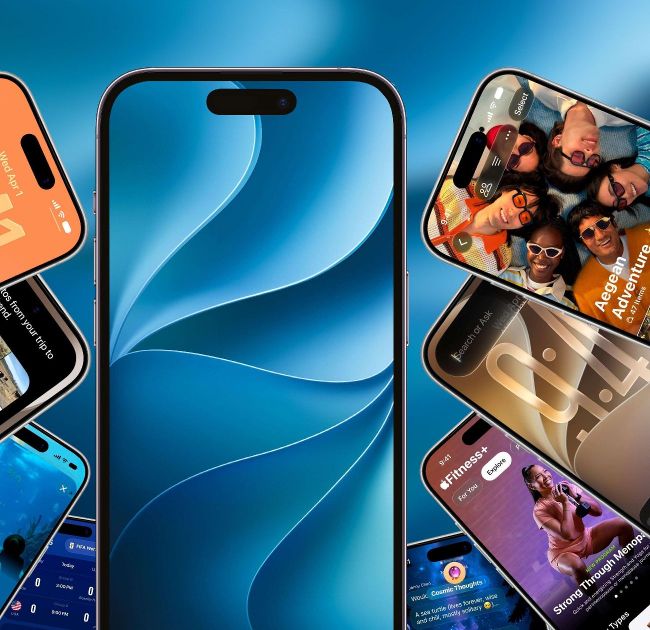
Image rights: Apple Inc.
WE’VE COME A long way since iPhone OS powered the very first iPhone back in 2007. The new iOS 27 is the most advanced mobile operating system Apple has ever produced, and it’s the most personal too: every improvement here is designed to make your iPhone more useful and more you.
One of the biggest changes in iOS 27 isn’t officially finished: Siri AI, powered by Apple Intelligence. That’s arriving as a beta version rather than a final release, with the final, polished version arriving in the future. If that’s giving you flashbacks to the supposed super– powered Siri we were promised for iOS 18 in 2024… us too. But this time around the features definitely do exist, because we’ve been using them in the developer betas and we’ll show them to you in the following pages.
Not everyone will be able to enjoy the new Siri, sadly. It won’t be available in the EU, and Apple Intelligence requires an iPhone 15 Pro/ Max, iPhone 16 or later. Some features require an iPhone 17 Pro/Pro Max or iPhone Air. But the good news is that there are still tons of useful improvements coming to every compatible iPhone, from improved personalization and accessibility to faster performance and beefed–up family safety features.
Which iPhones can run iOS 27?
iOS 27 is compatible with all of these iPhone models:
✓ iPhone SE (second generation or later)
✓ iPhone 11/12/13/14/15/16/17 including Pro and Pro Max
✓ iPhone 13 mini
✓ iPhone 14/15 Plus
✓ iPhone Air
Apple Intelligence requires:
✓ iPhone 15 Pro/Pro Max
✓ iPhone 16+ including Pro and Pro Max
✓ iPhone Air
Advanced Siri AI features require:
✓ iPhone 17 Pro/Pro Max
✓ iPhone Air
Personalize your iPhone
Explore iOS 27’s extensive customization features
THE UPCOMING iOS 27 is the most customizable version of iOS yet, and it’s packed with personalization options to make your iPhone distinctly yours. While many of the features were present in iOS 26, they’ve been improved in iOS 27 — so adding Home Screen widgets gives you more options, there’s more control over wallpapers and the Lock Screen, and if Liquid Glass is just a bit too transparent for your liking, you can adjust its intensity too. Liquid Glass has been slightly redesigned; the difference is subtle, but contrast is clearer and readability has been improved. As with iOS 26, if you don’t like the transparency effects at all, you can turn on Reduce Transparency in Settings > Accessibility.
NATURAL LANGUAGE
Accessibility features benefit from improved Apple Intelligence, which can “see” the display and deliver more information or carry out contextual actions. It’s more descriptive in Magnifier and Voice Over, and Voice Over is evolving to use natural language rather than just preset commands.
Apple Intelligence also powers some fun things: you can now create photorealistic wallpapers in Image Playground from photos of people, places or pets, and if you have the iPhone Air, iPhone 17 Pro or iPhone 17 Pro Max, you’ll be able to customize Siri’s voice to make it more expressive. Apple promises a more accurate voice recognition system for those iPhones too.
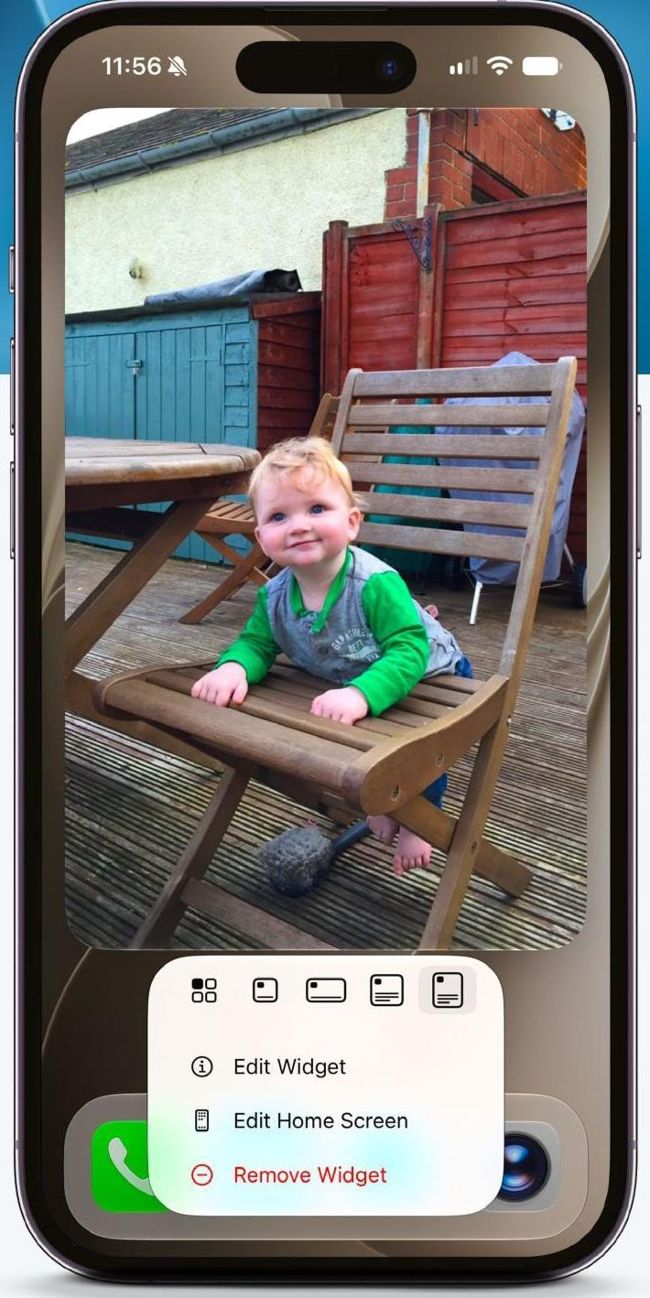
One of our favorite new features is the full–screen widget now available for apps such as Photos.
The Siri app
iPhones with Apple Intelligence now have a dedicated Siri app. You can still call up Siri as before, but the app enables you to use Siri like a chatbot. It also (optionally) stores all of your Siri sessions irrespective of the apps used, so its Conversations view shows questions and answers, things you’ve used the in–camera Siri for, things you’ve asked Siri to find, and the answer to Life, The Universe and Everything.
HOW TO Add Home Screen widgets
1 Press and hold
Press and hold on any empty bit of your Home Screen and you’ll see a paintbrush icon appear in the top left; tap on that and you’ll see the menu shown here. Tap Add Widget to see what’s available.
2 Take your pick
You’ll see some suggested widgets at the top and then available widgets by app; tap the app then swipe left and right to see the available ones. Widgets come in more sizes than before, including ones that take up a whole screen.
3 Change the size