Reboot Windows 11 File Explorer
YOU’LL NEED THIS
WINDOWS 11 FILE EXPLORER plus some optional free apps to give you additional or improved functionality: WizFile, TeraCopy, ViVeTool, Win Subst, and TreeSize Free
THERE’S NO GETTING AWAY FROM IT: a core part of Windows 11 is File Explorer, the tool used to navigate and manipulate the files and folders on your PC. But for all the time you’re using it, are you maximizing your use of File Explorer? It has come on leaps and bounds in the last few iterations of Windows, and there may be some hidden features you aren’t aware of that could revolutionize the way you interact with your PC’s drives.
That’s where this latest collection of tips and tricks comes in. We’ll start by highlighting some of the lesser-known tools within File Explorer that can help make your life easier. We’ll explore third-party tools to fill in some of the gaps or even improve areas of File Explorer further—such as through faster file transfers or by allowing you to map local folders to drive letters for quick and easy access. We’ll also give you a sneak peek at what’s coming in the next major update as tabs make their long-awaited appearance, and point you towards some alternatives to File Explorer if it fails to meet your file-management needs.
NICK PEERS
1A NEW STREAMLINED RIBBON
One of the most visible changes in Windows 11’s File Explorer is the stripped-back ribbon. Gone are the tabs of options and tools, replaced by a single row of buttons comprising the most used options, from cutting, copying, and pasting to renaming, deleting, and sharing.
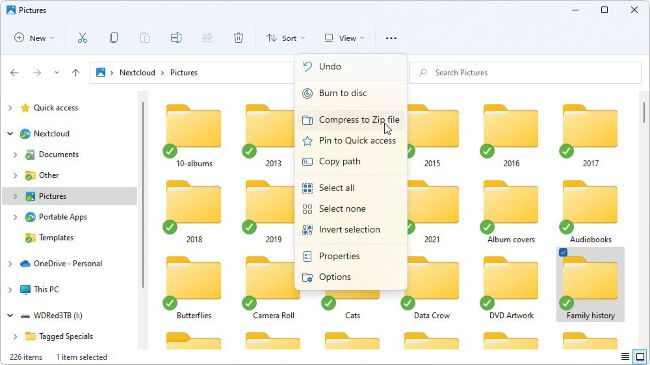
>> You’ll also see that the New, Sort, and View options remain, along with a More (…) button covering useful, but less frequently accessed tools, such as burning discs or mapping and adding network drives [Image A]. Note, the More option is contextsensitive, so its contents will change depending on what you currently have selected.
>> Compared with the ribbon found in Windows 10’s File Explorer, the new version looks rather barren and simplistic. However, all the main features are still here, it’s just that some of them are less visible than before. For example, the options to show item checkboxes (to easily select multiple files within a single folder), hidden items, and file extensions are now found under ‘View > Show’.
>> Elsewhere, features removed from the ribbon remain accessible from other locations. For example, the ‘Pin to Quick Access’ button has gone but you can still drag your chosen folder into the Quick Access menu or right-click it and choose ‘Pin to Quick Access’ instead.