THE ULTIMATE BACKUP GUIDE
How safe is your data? Nick Peers reveals how to set up a foolproof backup plan
HAVE YOU EVER suffered the crippling sensation of data loss? Found yourself having to reinstall Windows from scratch and realizing just how many apps and settings have been lost? The importance of backups cannot be overstated, but does your current backup plan cover all the bases? Is it comprehensive, frequently updated, and spread across multiple locations?
In this feature, we reveal the best free tools for the job, from taking a fail-safe backup of entire hard drives to protecting multiple versions of your data files, so you can undo unwanted changes in addition to protecting the files themselves. We also recommend what to look for in backup devices, and how to safely store your files in the cloud without potentially exposing them to third parties.
Crucially, we step you through the process of backup and restoration, and reveal tools and tips to plug any remaining gaps in your armor. Are you ready to ensure you never suffer another data loss nightmare? Turn the page to get started….
WE’VE BROKEN DOWN the backup process into three key stages. First, you need to take a full, fail-safe drive image to protect everything on your system drive, from your Windows installation and programs to your app settings and any files on the drive. Then you should make a separate, independent backup of your personal data, those files and folders that are irreplaceable, from precious photos to crucial work documents. Finally, we help you securely back up files to your cloud storage while retaining full control of the encryption keys that protect them from unauthorized access.
STEP 1: Take a Full Backup
Your first backup will be your most thorough: a byte-for-byte copy of your hard drive in the form of a drive image. This serves a multitude of purposes. Firstly, it’s comprehensive. Secondly, it provides you with a working copy of Windows, your programs, and—if everything’s on the same drive— your data, so you can roll your PC back to a recent working state in the event of disaster.
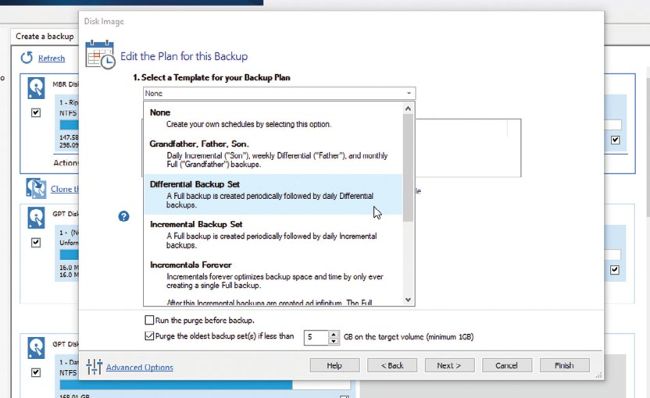
Use a template to schedule regular backups.
You need one or more backup drives that are big enough to not only contain a complete—albeit compressed—copy of your main hard drive, but all subsequent backups, too. To minimize the amount of space these backups take, it’s important you choose a drive imaging tool that’s capable of taking multiple snapshots of your system in such a way as to consume a fraction of the space they’d normally require.
The tool in question is Macrium Reflect Free (www.macrium.com/reflectfree.aspx) and it uses what’s known as differential backups to reduce the amount of space your backups consume, making it practical to store weekly or even daily snapshots of your system. Differential backups require one full backup, then they simply record all the changes to your system made since that full backup was taken, resulting in a significantly smaller file (try 10–20GB instead of 120GB, for example). As an added bonus, differential backup jobs complete faster than full ones.
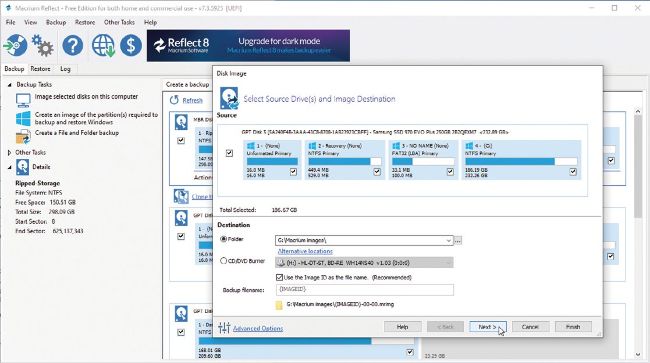
Macrium Reflect can back up to local and network drives.
Because each differential backup is based on the latest available full backup, they grow as time passes and more changes are made to your system. The solution is to adopt a set of rolling backups known as a father-son set. You create a fresh full—or father— backup on a monthly basis, then take differential (son) backups on a weekly basis. To save space, the job retains only a set number of backups: typically, two to four full ones, depending on available storage space, then a rolling set of four to five differential backups.
INVEST IN BACKUP DEVICES
You can never have too many backup devices. A rule of thumb is to back up to a minimum of two physically separate drives or locations, and if you have cloud storage, store at least your most critical files online, too (ensuring they’re as secure as they can be).
The cheapest backup option is a secondary hard drive—whether internal or connected via USB, it’s quick and convenient, but vulnerable to the same fire, damage, or theft as your main PC. With prices slowly tumbling, select the largest drive you can afford (4TB costs around $90) to meet your backup needs both now and going forward.
Ideally, your second backup drive should be in a different room—if not off-site—to provide additional protection against physical threats. Look for a network (NAS) device that can serve as a central backup location for all the computers in your home.
Look for models with two or more drive bays, enabling you to expand capacity or provide additional redundancy in the form of RAID. Models like QNAP and Synology are more like mini-servers than simple network storage devices, giving greater scope to run centralized services such as NextCloud, as well as offering their own tools similar in scope to Duplicati.