HOW TO
STEP-BY-STEP GUIDES TO IMPROVING YOUR PC
TIP OF THE MONTH
FULLY SHUT DOWN YOUR PC
The Windows Fast Startup feature is enabled by default, which means that when you shut down your PC, it doesn’t fully switch off the entire system. Although we love a quick bootup, sometimes you need to close everything down completely. So, next time you want to shut down your computer properly, hold Shift while you click ‘Shut down’. This should help sort out minor issues with applications not responding and so on.
MAKE – USE – CREATE
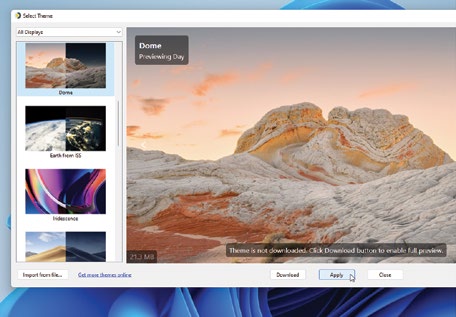
Discover how to customize your Win 11 desktop

Design your own word art logos with GIMP
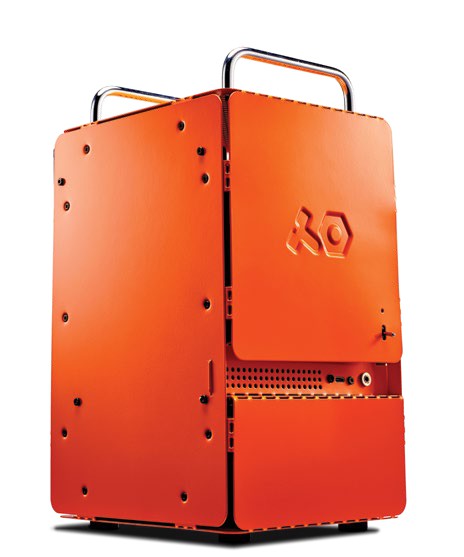
Build a DIY rig inside a Teenage Engineering case
© MICROSOFT, GIMP

SAM LEWIS STAFF WRITER
A MOVING STORY
By the time your eyes hit this page, I should have moved house. As exciting as this is, I have acquired a colossal arsenal of tech gear since joining the Maximum PC team and it isn’t going to be easy to dismantle my current setup.
However, the move gives me chance to really go to town on my next one. I still have a liquidcooled PC with an Intel i9-12900K and Asus RTX 3080, so that’s the system well and truly checked, but I need a new monitor to pair with it. I currently have an ultrawide screen with a 60Hz refresh rate, which you could say is hindering my gaming capabilities slightly.
First-world problems parked, this new place will be a great opportunity to build a unique space for both work and play. So, I’ve put Elden Ring to one side and managed to steer clear of spoilers so I can experience it properly in a new setup. For now, I’m living out of suitcases and the Razer Blade 14 has made its way to the top of my friends’ list. Though it is more than capable of playing Elden Ring, Iwant to experience the game in all its glory on a desktop.
I have, however, been playing Warzone again as I can hop on from time to time. Saying that, each time I leave it for a few weeks I swear the skill level of other players grows hugely, or am I just terrible? Probably the latter…
↘ submit your How To project idea to: editor@maximumpc.com
Customize Your Windows 11 Desktop
YOU’LL NEED THIS
RAINMETER
Download this free tool from www.rainmeter.net.
CAIRO
Visit https://cairoshell.comto download this handy app.
WINDYNAMIC DESKTOP
Grab this gratis tool from https://github.com/t1m0thyj/
WinDynamicDesktop.
ARE YOU BORED with your Windows desktop? Perhaps the new Windows 11 refresh doesn’t quite grab you, or maybe you’ve decided to cut loose after years of making do with various shades of gray. The good news is that your desktop doesn’t have to remain staid and stale, and we’ve got all the tips and techniques you need to not only make it more attractive but more functional, too.
We open with a simple facelift using Windows’ own tools—a wallpaper change, a color scheme update, and a look at combining all your customizations into a single theme. Not radical enough? Check out the box on page 60 for a tool that can transform your desktop into something more dynamic, with a background image that magically updates as the sun rises, sets, and finally disappears behind the horizon.
If aesthetics aren’t your thing, we also introduce you to a desktop “skinning” tool called Rainmeter, which enables you to place a series of useful information tools—from clocks and to-do lists to system resource meters—on your desktop. And last, but by no means least, we introduce you to an even more radical tool, Cairo, which helps you change the way you use your desktop, transforming it into a tool that’s as practical as it’s pretty. –NICK PEERS
1SIMPLE TWEAKS If you’re just starting out in the world of desktop customization, you’ll find Windows offers many options within its own Settings app—right-click the desktop and choose “Personalize” to see what’s available. You’re shown a list of themes, which are a collection of wallpapers, color schemes, sounds, and cursors. More on that in step two.
>> For now, focus on the sections below these, starting with “Background”. Select this and you can set your wallpaper one of four ways using the drop-down: Picture, Solid color, Slideshow (choose a folder of images on your PC), or Windows spotlight, which displays a series of landscapes handpicked by Microsoft.
>> By default, when you select a new background, you should find your Taskbar and other desktop elements change color to match the wallpaper—to change this behavior, select “Colors” instead. You’ll see options to switch between dark and light mode (Windows enables you to specify different settings for Windows dialogs and apps). You’ll also see a “Transparency effects” switch—flick this on and when your dialogs pass over a strongly colored background (such as your wallpaper), you’ll see a hint of that color peeping through.
>> Beneath this is the “Accent colors” switch—if it’s set to “Automatic,” the basic colors of dialog boxes, the Taskbar, and other Windows elements are determined by the color scheme of your desktop wallpaper. If you’d rather set these yourself, set the drop-down menu to “Manual” and experiment with the various
A colors displayed beneath (if they don’t fit the bill, scroll further down, and click “View colors” to choose from the entire Windows palette).
>> One final tip: If you want to change the color of the Taskbar, you need to switch from Light mode to Dark or Custom. Once done, the “Show accent color on Start and Taskbar” switch becomes available, and it reflects the other dialogs.