PROBLEM OF THE FORTNIGHT
Problems Solved
Our experts solve all your tech problems
Why can’t I print from my Surface Pro?
Q I recently bought a Microsoft Surface Pro 11 laptop-tablet and a Canon TR7650 printer.
After much to and fro with Canon, its support staff told me this printer model is incompatible with the Surface Pro 11. This is because the Surface Pro has an an AMD processor and the printer only works with ‘x86-type’ processors. I’m very unhappy with this. Canon did not seem concerned that I had spent a lot of money on something that does not work, despite saying on the website that it supports Windows 11. I’m hoping you can suggest a fix or maybe an explanation as to why this is the case. It looks like a more general problem that I’ve learned about the hard way.
Ian Brighton
A First, let’s clear up the processor type inside your Surface Pro 11, which is a Snapdragon unit. This is an ARM-based chip, made by a company called Qualcomm, and has nothing to do with AMD – but it’s easy to mix up ARM and AMD.
Processors that use an ARM design are not the same as those made by Intel and AMD for PCs, which were originally based on the x86 architecture (named after the Intel 8086 processor, released in the 1970s). So, while Microsoft now has made an ARM-based version of Windows 11, not all Windows apps and tools are compatible with it – and this is the situation you’re hitting up against. Basically, Canon has not yet made ARM-compatible drivers for its printers. It is not alone in this, because many manufacturers adopt a wait-and-see approach. This is likely to improve over time, as hardware and software companies update their tools to work with Windows on ARM.
But, that’s not much consolation in the here and now. The solution is to make use of the generic drivers made by Microsoft, and built into Windows. These won’t give you access to all the features you might find in dedicated drivers, but they should at least give you the ability to print.
First, in Windows 11, click the Start button followed by the Settings cog, and then ‘Bluetooth & devices’ followed by ‘Printers & scanners’. Next, click the ‘Add device’ button, wait for a moment while Windows scans for new printers, then click the ‘Add a new device manually link’ (see screenshot above). Now, in the Add Printer box, click Microsoft followed by Microsoft PCL6 Class Driver (see screenshot left), then click Next. Give the printer a different name (optional), then click Next followed by Finished.
Hopefully, you can now print via this generic driver. If not, there’s one more setting to tweak. Back at the ‘Printers & scanners’ page in Settings, click the Microsoft PCL6 Class Driver entry and then click ‘Printer properties’. In the Properties box that opens, click to select the Advanced tab. Finally, next to Driver, click to open the dropdown menu and choose Microsoft IPP Class Driver before clicking OK. You should now be able to print.
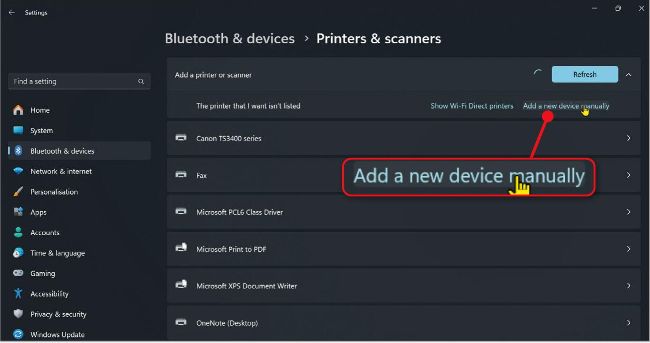
To use Microsoft’s generic printer drivers, click this link in ‘Printer & scanners’ settings…

… Then in the Add Printer box, click Microsoft under Manufacturer followed by Microsoft PCL6 Class Driver