Problems Solved
Our experts solve all your tech problems
PROBLEM OF THE FORTNIGHT
Will I need a new Windows licence?
Q
Flipping back through Issue
693’s ‘Windows 10 is doomed’ Cover Feature, I found the
information very useful. However, I now have a question that I fear I won’t know the answer to until I put it to the test – and by then it’ll be too late.
Let me explain. Because I don’t have TPM security on my existing setup, my plan is to replace my motherboard and processor with more recent versions. However, when I attempt to boot to my new system I’m worried that my current Windows 10 installation will kick up an almighty fuss about this and tell me I can’t transfer the licence to a ‘new machine’.
If this were to happen would I still have the option of upgrading to Windows 11 or would I be forced into a completely clean install, thus losing all my apps and data?
On a related note, could I upgrade from Windows 10 to Windows 11 Pro through the Reader Offer at www. snipca.com/50563(see page 54). Or does that just upgrade from Windows 11 Home to Windows 11 Pro?
Derek Truby
A
From the average PC user’s
perspective there are really just two Windows licence
types to worry about – retail and original-equipment manufacturer (OEM). We’d say that most people these days end up with the latter, because it’s OEM licences that cover Windows that’s already installed on new PCs.
Windows OEM licences have numerous restrictions, and are essentially tied to the machine’s original motherboard. So, if your PC has an OEM licence and you swap the motherboard, Windows will likely deactivate itself and Microsoft will not allow you to reactivate. You’d then need to buy a new retail Windows licence. With a retail licence, you could do what you want – as Windows will let you reactivate on a new motherboard.
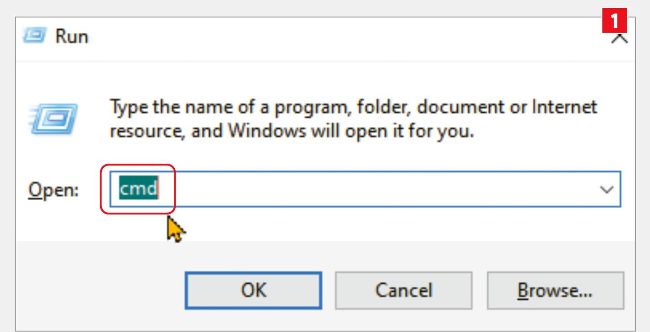
To find out which kind of Windows licence you have, type cmd into the Run box…
If you’re not sure what kind of licence you have, there’s a command-line trick that lets you find out. First, press Windows key+R to open the Run box, then type cmd (see screenshot 1 ) and press Enter. Next, in the Command Prompt window, type slmgr /dlv 2 and press Enter. Nothing will happen in Command Prompt, but a Windows box will open to show details about your licence. If you see ‘OEM’ next to the Product Key Channel line 3 , then you have an OEM licence. Otherwise, it should be retail.
As for our Reader Offers, they change regularly – so it’s important to check the specific details when buying. Regardless, it’s important to understand that if you buy an Upgrade-suffixed version of Windows – from the Computeractive Store or anywhere else – you are paying to upgrade the licence you already have.
Your current PC has Windows 10 Home. The upgrade offer you’re asking about upgrades Windows 11 Home to Pro. So, to take advantage of this specific offer, you’d first need to upgrade from Windows 10 Home to Windows 11 Home, which Microsoft lets you do free (and, indeed, actively encourages).