HotPicks
Inkscape
Inkscape > Maestrial >Cinnamon >Qmplay2 >GitQlient >Gifski >FreeTube >Open Surge> Quantum Game 2> YOGA Cpufetch
Alexander Tolstoy is constantly refining his collection of the best open source software on the planet!
VECTOR IMAGE EDITOR
Version: 1.1 Web: https://inkscape.org
T here’s only one vector editor for Linux that can compete with commercial packages such as Corel Draw or Adobe Illustrator.
Indeed, Inkscape is one of the jewels in the crown of open source software. The program is packed with a rich set of features, and it’s become a versatile application for many creative activities including digital art, illustration, icon design, business graphics, plans and more. It can also be used for graphic design, such as creating a poster or brochure. Inkscape often comes top when pitted (see Roundup LXF248) against other vector-editing solutions for Linux, including Karbon (part of KDE’s Calligra Suite) and LibreOffice Draw.
Now we have a fresh version that’s packed with new features. The appearance of Inkscape 1.1 back in May may have seemed like a minor dot release, but it’s actually a major milestone version. What you’ll quickly notice at the first launch of Inkscape 1.1 is the brand new welcome screen that enables you to perform some quick setup actions. There are five empty canvas presets available, with different colour schemes and transparency representations, lots of keyboard shortcuts presets, and also several icon themes for Inkscape’s tool bars. The welcome dialog has also a separate tab for New Document presets, which we think will come in handy for new Inkscape users.
Not much has changed visually in the application itself, but you’ll probably notice that various Inkscape dialogs, such as Text Formatting, Align & Distribute, Layers and Object Properties, are now docked as detachable tabs. It’s now much easier to rearrange those tabs and even stack them along the left-hand side of the window, which was previously not possible.
The Export dialog is now easier to use because it no longer displays an extra confirmation window. It’s another dockable dialog, and so all you need to do is to bring it up and press the Export button once, and that’s it. Don’t forget to try out the new Extension manager to get hold of even more cool Inkscape add-ons!
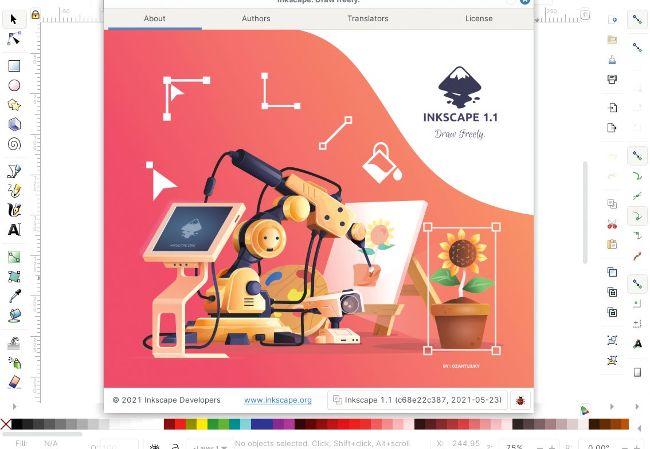
Set up your new Inkscape instance with the help of this new welcome dialog.
GET TO KNOW INKSCAPE THE INTERFACE
1
Welcome screen
The beautifully designed wizard will help you quickly set up your new Inkscape document, change its dimensions, appearance and so on.
2
Main tool bar
Use this feature-packed left-hand panel to create new shapes, draw lines and curves, select colours and work with the nodes of your vector objects.
3
Placement and size
Never align objects approximately.Instead, use precise figures to move them. The same applies to sizes and dimensions.
4
Dockable panels
Inkscape has a wealth of extra features, panels and tool properties that you can make use of. Everything can be neatly docked along either the right- or left-hand side of the window.
5
Advanced path tools
Merge, intersect or divide sets of vector objects, edit their anchors or regular nodes and revel in the freedom of vector drawing!
DROPBOX CLIENT
Maestrial
Version: 1.4.3 Web:https://github.com/ SamSchott/maestral
M
aestral is an alternative Dropbox client written in PyQt5. The official Dropbox client is also PyQt5, and so we initially wondered why the developer created Maestral in the first place?
It turns out that the project’s main goal is to provide a client for platforms and file systems that are no longer directly supported by Dropbox. Moreover, Maestral is a compact program that takes up less disk space and consumes less memory than the official Dropbox client.