Part 1
Master Accessibility on Mac
Here’s how to use VoiceOver and zoom and hover on your Mac
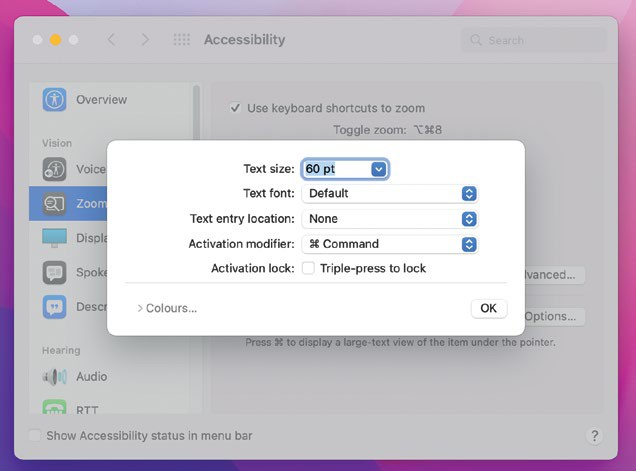
You can fine tune the settings for hover and zoom, and choose the text size and font.
Accessibility settings on the Mac are controlled from the Accessibility pane in System Preferences. It is split into four sections to make it easier to find the setting you need – Vision, Hearing, Motor, and General. You can also choose to show Accessibility status in your Mac’s menu bar. If you choose that option, the Accessibility icon –a human figure inside a circle – will appear in the menu bar. If you click it, you will be able to choose any Accessibility setting.
In addition, if you tap the Touch ID button (on Macs that have one) three times in quick succession, you will see a menu of Accessibility items that you can specify. Press † to move from one to the next and the Spacebar to select one. Your Mac will read them to you as you select them.
It’s important to note that Accessibility controls can be useful for lots of people, beyond those with physical limitations in their ability to interact with their Mac. For example, anyone who suffers from motion sickness will benefit from the ‘Reduce motion’ option (Accessibility > Display).