HOW IT WORKS
Centre Stage and Desk View
Show two different (but simultaneous) views from a single camera
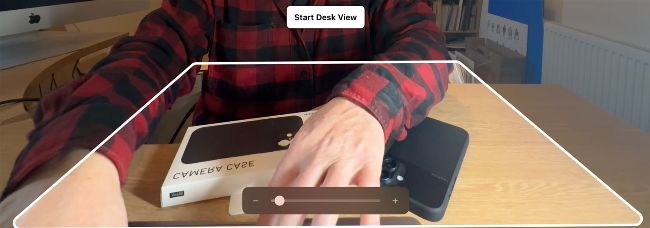
When setting up Desk View, drag a slider to focus on the area that you want to view as from above. The preview’s perspectival distortion and inverted text will be corrected by software.
YOU WILL LEARN
How to use your iPhone as a Continuity Camera, as well as learning about Centre Stage and Desk View
Key fact
By default, Centre Stage transforms your footage in the x, y (and sometimes z axes) to automatically try to keep you in the frame at all times. However, if you use one of Centre Stage’s Background effects (to replace the clutter in your untidy office), the replacement background won’t be transformed, so you’ll appear to slide around the screen. In this case, it’s best to click on Centre Stage to turn off its horizontal and vertical transformations.

The Fusion and Ultra Wide cameras on iPhone 16 are vertically aligned for spatial photo and video capture.
Image credits: Apple Inc, George Cairns
Want to look professional in an online video, or present something from your desk? Once again Apple is here to help!
Centre Stage keeps your face in the centre of the screen when using apps such as FaceTime or QuickTime Player, while Desk View shows you a top-down view of the physical desk space in front of your Mac during a video call. Both the view of your face and the shot of your desk are generated by a single camera, courtesy of real-time AI-assisted image manipulation.