126 time-saving tips for Mac, iPhone, iPad & Apple Watch
Written by Carrie Marshall
O
ne of our very favourite things about our Macs and other Apple devices is that they give us something precious: time. Time we’re not spending on boring, repetitive or unnecessary things is time we can spend on the things that really matter, like hanging out with the people we love, working on our passion projects or binge-watching Pluribus on Apple TV. That’s why we’ve put this mega-feature together. It’s packed with tons of time-saving tips and tweaks that will make your Mac more responsive, more organised and more efficient. We’ll discover smart ways to automate everyday tasks, to make it easier to find things, and to customise not just your Mac but your iPhone, iPad and Apple Watch too. Whether you use your devices for work, college, or entertainment, these handy helpers are worth taking the time to discover and do.
Get going
faster!
1 Simplify your startup
Some app installations add them to your Login Items, which means they load every time you switch on your Mac. You can change that in System Settings > General > ‘Login Items & Extensions’. In the ‘Open at Login’ section, select an app and click on the ‘–’ button to remove it.
2 Open your apps
Sometimes you do want to launch apps at login; for example, we have Mail and Safari open automatically when we switch on. To add an app to Login Items in System Settings > General > ‘Login Items & Extensions’, click the ‘+’, select it from your Applications folder. Click Open.
3 Bypass your apps
If you want to temporarily bypass your login items when you start up your Mac, type your login password and then hold down the Shift key as macOS gets ready to fire up. This skips the usual login items for a speedier startup without removing them forever.
HOW TO Get smart with Spotlight
1 Search with Spotlight
We use Spotlight all day long because it’s more than just a search bar: it’s a currency converter, a dictionary lookup, a quick app launcher, and more. To start using Spotlight, simply press Cmd and the Space bar and it’ll pop up in the centre of your screen, ready for your input. It’s incredibly handy.
2 Simplify Spotlight
By default, Spotlight indexes everything, but you can slim its searches down in System Settings > Spotlight > ‘Results from Apps’, by excluding things you don’t need to see search results from. For example, we don’t get Spotlight to search the Books app, Podcasts or WhatsApp on our Mac.
3 Make a call
If you search for a person in Spotlight, it will look through your Contacts app and find them – and, in the search results, it’ll display icons that you can click to contact them via a FaceTime voice or video call, send them a message or email them without having to open the Contacts app first.
4 Get conversions
Spotlight can convert currencies, temperatures and measurements, so for example typing ‘100 GBP in USD’ converts British pounds to US dollars and ‘32F in C’ converts Fahrenheit to Celsius. You can also use Spotlight as a quick calculator by typing expressions such as ‘200-10%’.
5 Sort out Settings
In addition to launching apps by entering their name, you can find specific things. For example, searching for ‘System Settings appearance’ will take you straight to the Appearance section of the System Settings app; ‘Pages new’ results bring up Create New Document in the Pages app.
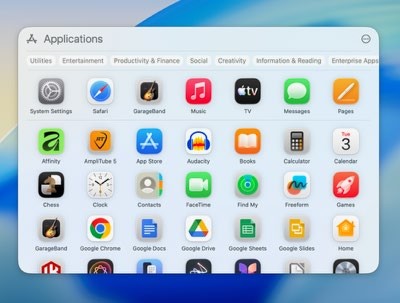
Image credits: Apple Inc, Google LLC, Affinity, IK Multimedia Production srl, Muse Group & contributors, Native Instruments GmbH, The Document Foundation
6 Use Spotlight shortcuts
There are multiple even handier keyboard shortcuts in Spotlight for fast filtering. Cmd+1 to Cmd+4 limits Spotlight’s current search to Applications, Files, Actions and the clipboard respectively, and you can search in a specific app by typing the app name then pressing the Tab key.
Handy Mac tips
Start by getting your Mac layout sorted
S
ome of our favourite time-saving features are in the Finder, where we can customise macOS so we can find things faster, remove roadblocks, organise our open apps and automate common tasks, such as typing standard text and sharing files.
1 Double the desktop
What’s better than one desktop? Two! Use Spaces in Mission Control to have multiple desktops, each with their own open apps and, if you wish, their own wallpaper too. To move an app from the normal desktop to a second one, just drag it to the very right of the screen and wait a moment. It’ll now switch to a new desktop. To move between Spaces, press Ctrl and the left/right arrow keys.
2 Sort the sidebar
In Finder, you can drag commonly used folders to the sidebar for fast access. You can then drag the sidebar links around to reorder them, or drag them out of the sidebar to remove them.
3 Colour with tags
You can use Finder’s tags to colour-code your files and folders for faster recognition – for example, by using red to highlight overdue documents or projects, or green to quickly flag completed ones. In macOS 26 (Tahoe) you can also Ctrl-click on a folder, choose Customise Folder, give it an emoji or icon, and also change its display colour.
4 Duck the Dock
If the Dock’s taking up too much room at the bottom of your screen, you can move it, make it auto-hide or change its magnification settings by Ctrl-clicking on it and bringing up Dock Settings.