GB
  
You are currently viewing the United Kingdom version of the site.
Would you like to switch to your local site?
13 MIN READ TIME

ASK

TECH SUPPORT & TECHSPLANATIONS

Get official documentation at support.apple.com | Get help with hardware at support.apple.com/repair

EXPERT ADVICE

Our resident genius solves your Mac and iOS problems

Email Mac|Life at ask@maclife.com
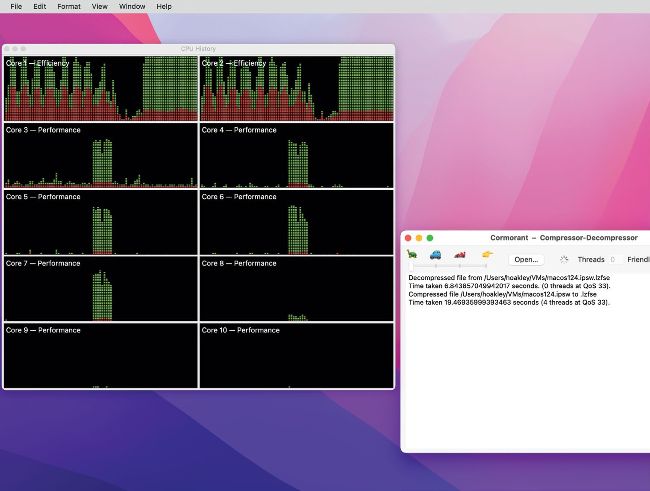
Few apps give the user control over which type of core they run on in Apple silicon Macs.

> You can’t speed up background tasks

When TechTool Pro runs on my Mac Studio, much of its work is done on the M1 chip’s slow cores. Is there any way that can I force it to use the fast cores instead, so it completes that work more quickly?

Apps normally run time–consuming tasks in parallel threads to avoid locking the app up with a spinning beachball. When those threads are created, the code should assign them a priority, known as Quality of Service (QoS), a setting of great importance when running on M–series chips.

In Apple silicon Macs, the QoS also determines which type of cores those threads are run on. Only the lowest QoS causes macOS to run those threads just on the Efficiency (E) cores, even when there are Performance (P) cores available. So in this case, the threads doing that work are set with that lowest QoS.

While you can use the command tool taskpolicy to demote threads with higher QoS to run on the E cores, there’s currently no way to promote threads with lowest QoS so they can be run on P cores instead. Some apps now give the user control in their settings, but without that there’s no way of changing the QoS and getting the app to make better use of available P cores. You should ask the developer of that software to give the user that control.

Notarize now very crucial

WHEN NOTARIZATION WAS introduced by Apple, it didn’t seem too important. Its checks on apps proved fallible, and opening unnotarized apps merely added an extra step to the process. Once you’d got an app through its first run, there didn’t seem to be any difference either, and the Finder doesn’t even tell you what’s notarized.

This changes in Ventura. Now, every time you run a notarized app, it’s checked just the same as if freshly installed to ensure its contents match the signature, and that the signature and notarization are valid.

Not so for apps that aren’t notarized, though: once past their first run, they can still modify themselves or be modified maliciously — something that isn’t difficult to do. The time has come to reflect whether those unnotarized apps have become your Mac’s greatest vulnerability.

Unlock this article and much more with
You can enjoy:
Enjoy this edition in full
Instant access to 600+ titles
Thousands of back issues
No contract or commitment
Try for 99p
SUBSCRIBE NOW
30 day trial, then just £9.99 / month. Cancel anytime. New subscribers only.


Learn more
Pocketmags Plus
Pocketmags Plus

This article is from...


View Issues
Mac|Life
February 2023
VIEW IN STORE

Other Articles in this Issue


START
ROUGH WITH THE SMOOTH
ONE THING I look forward to every day
iPhone 14 Pro supply problems
Production in China slowed by lockdowns and unrest
News in brief
A bite of the Apple
> THE SHIFT
MATT BOLTON thinks that Stage Manager on iPad needs (a lot) more work, but it makes him imagine a smarter, adaptive future
LETTER OF THE MONTH
I read your recent “Mac Writing Apps” article
CRAVE
THE GEAR WE’RE LUSTING AFTER
Feature
UPGRADE YOUR APPLE GEAR
Received a shiny new Apple device for Christmas? Here’s how to transfer everything that matters, from photos to preferences
CLONE YOUR MAC
Make a copy of everything on your Mac before you start. Here’s how…
BACK UP YOUR OLD PC
Moving from a Windows machine to a Mac? Here’s what you should know
MOVING TO YOUR NEW MAC
Everything’s ready — now it’s time to migrate
SETTLE INTO YOUR NEW MAC HOME
Now it’s time to get Mail, Music and Messages going
BACK UP YOUR OLD iPHONE OR iPAD
Get ready to transfer all your important data to your brand–new device
TRANSFER TO A NEW iPHONE OR iPAD
Whether you’re upgrading from Apple or switching from Android, moving on is easy
iPhone photography superguide
Discover how to shoot, edit and share better–looking photos
Portrait & landscape photography
Learn how to capture perfect portraits and scenic landscapes
Master low–light photography
Tips and tricks for shooting with the iPhone’s handy Night mode
Discover the Photos app’s digital darkroom tools
Get your photos and clips looking their best
REVIEWS
TOUGH TESTING, TRUSTED RATINGS
WATCHOS 9 SUPERGUIDE
Everything you need to know about the best watchOS yet
What ’s hot in watchOS 9
Why watchOS 9 is the upgrade many of us were dreaming of…
Health & Fitness improvements
Completely customize your workouts and the info you see on screen
REVIEWS
SanDisk Pro–Blade SSD
Fast, swappable SSD storage
Apple TV 4K (2022)
Apple’s black box has been given a refresh yet is cheaper than before
GoPro Hero 11 Black
Is this new offering worth the upgrade?
Logitech Zone Vibe 100
A comfortable and lightweight wireless headset for voice and video calls at work
Journey ALTI Desk Mat
Desk declutter and wireless charging in one
UE Wonderboom 3
Punchy performance in a portable package
The best hubs designed for the modern iMac
Expand the ports on the iMac 24–inch (M1, 2021) with these stylish hubs
OWC Envoy Pro Mini
With both USB–A and USB–C connections, the Envoy
Mophie 3–in–1 travel charger
The perfect solution for charging Apple gear on the go?
KEF LSX II
This second–gen streaming speaker package is seriously stellar
EASY VIDEO EDITORS FOR MAC
Take the next step on your movie making journey
WONDERSHARE FILMORA
The perfect balance of power and usability, a serious step up from iMovie
Imgmi
AI–powered image enhancement and editing
Tim 7.2.0
Keep track of the time you spend working on projects
Intruder in Antiquonia
Short but not very sweet
Camera Guard for Mac
Lock down your Mac with ease
6 APPS To level up the Dynamic Island
Clever uses for the iPhone 14 Pro’s coolest party trick
Best of the best
Can’t find the hardware or app you’re looking for in our reviews section? Then check in here — we’ve highlighted the best in every major category, as voted for by us
CREATE
Master the Clock app
HOW TO DO ANYTHING ON YOUR MAC, iPHONE & iPAD
Make the most of Opera GX
Try a web browser that comes loaded with clever extras
Manage windows with Warp
Save custom layouts and launch them with a keyboard shortcut
Sleep better with your Apple Watch
Your Watch can track your sleep and stop apps from waking you up
Work with masks and color
Produce creative color effects using selection tools and masks
Enjoy a better ebook experience
Apple’s Books app has had a few tweaks in iOS and iPadOS 16. Here’s how to use them
Create routes with stop–offs
Factor in stops, or direction choices, along your journey in Apple Maps
Navigate your notifications
Discover the way notifications now work on your Lock Screen in iOS 16
MagSafe
There’s more to MagSafe than just a magnetic cable
Chat
X
Pocketmags Support