85 FAST FIXES
The ultimate trouble–shooting guide for Mac, iPhone & iPad
WRITTEN BY HOWARD OAKLEY
Alongside their multitude of new features,
Apple’s latest operating systems change how to tackle many of our everyday problems. Here’s your up–to–date toolkit
FIXING PROBLEMS IN our Macs, iPhones, and iPads can be tricky as the devices continue to evolve. You can’t employ the same tools and techniques when the chips keep changing, and each year brings a full suite of new operating systems. Tricks we once relied on, like repairing permissions, are now long gone. With its signed and sealed System volume, that once–popular fallback of clean re–installing macOS is seldom of any use today. Fortunately, if you want to check whether Monterey is in mint condition, all you need to do is restart your Mac, and MacOS checks every single file on its System volume against Apple’s blueprint.
Some well–proven tools have simply vanished, like installing a combo update as a way of fixing all sorts of system misbehavior, as Apple no longer provides separate updaters for macOS. New M1–series Macs are also different from their predecessors in doing away with startup key combinations in favor of an integrated recovery system.
Although devices might seem more limited to turning features off and back on, there are often better focused and faster ways to do this, depending on what’s wrong. Additionally, our iPhones and iPads have also gained new features like Shared with You with their own controls.
In many ways Monterey, iOS, and iPadOS 15 simplify fixes, but they also bring new challenges. So set your old remedies aside, ready for when you next go retro–computing. These are the latest fixes to sort out your Mac and devices today, to restore productivity and fun to your Mac, iPhone, and iPad.
Fast fixes for Mac
Fixing basic functions needn’t be difficult
1 YOU CAN’T INSTALL MACOS
If the App Store installer won’t work properly, make an external bootable installer from it on a USB flash drive or SSD using instructions at apple.co/3GSFhXi. To start a T2 Mac up from that, first start up in Recovery and enable it in Startup Security Utility. On an M1 Mac, start up in Recovery, select the USB drive there, and start up from it. If that fails, you can use the Install macOS feature in Recovery instead, although that only installs the latest version of macOS.
2 YOU CAN’T GET AN UPDATE
When Apple releases a macOS update, the Software Update pane may not show it immediately. If it doesn’t appear in an hour or two, open that pane to check again. Often opening SilentKnight (free, bit.ly/ ecelecticsk), can trigger its appearance. If that doesn’t work, start up in Safe mode (Shift key) and open Software Update there.
3 AN UPDATE FAILS TO INSTALL
Restart your Mac in Safe mode (Shift key) and try again. If that fails, download and use the full installer instead. Be sure to make a full backup before progressing in case you need to migrate from that. Start up in Recovery mode, on an Intel Mac press Cmd+R; on an M1 Mac hold the Power button during startup. Then use Install macOS there to install a fresh copy. That should hook up to your existing Data volume; if it doesn’t connect with your Data volume, then you will need to migrate from your backup to restore everything.
4 BLUETOOTH OR WI–FI GLITCHES
Shut down non–essential USB–C devices, which can cause radio interference, and clear the line of sight between devices to give strongest signals. Holding the Opt key down, click on the Wi–Fi item in the menu bar and Open Wireless Diagnostics to test that Mac’s Wi–Fi connection, and provide an expert opinion. Use its Performance feature to look for dropouts and other disturbances. To continue to monitor Bluetooth signal strength, try iStumbler’s Bluetooth view when it returns to the Mac App Store.
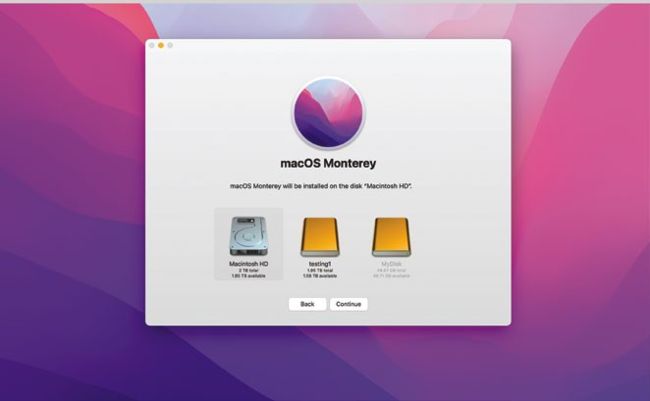
macOS installers run more reliably from Safe mode or from a bootable external drive.
5 AN UPDATE MESSED UP YOUR MAC
Restart your Mac; most update problems then vanish. Next shut down and start up in Safe mode holding the Shift key on an Intel Mac, or on an M1 through Recovery (hold the Shift key over the startup disk and click the button to start up in Safe mode). Leave your Mac for a few minutes, then restart normally.
6 YOUR LOGIN PASSWORD IS REFUSED
Check the Caps Lock key isn’t active, the most common error. With a wireless keyboard press keys slowly, checking only one character is added for each key. If you or your Mac have forgotten your password, ensure it’s connected to the internet and click on the "?" at the right of the password entry box. You’ll see the password hint, and instructions for resetting through your Apple ID. You might need to enter a few guesses before that button appears.
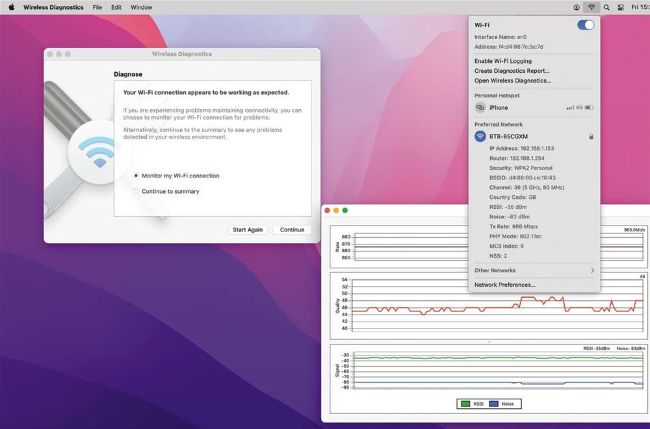
Use Wireless Diagnostics’ Performance window to look for Wi–Fi signal dropouts.
7 YOUR MAC IS GRINDING TO A HALT
Open Activity Monitor and use its CPU and Memory tabs to discover what’s in trouble. Click on column headers to show which is using most CPU %, and which is using most memory. If it’s kernel_task, your Mac’s too hot, so keep it cooler and leave that process alone. If it’s an app, save open documents and quit that app. If it’s the Finder, bring it to the front, hold Shift, and use the Apple menu > Force Quit Finder (Opt+Shift+Cmd+Esc) to restart it.