HOW TO BACK UP EVERYTHING
Want to back up your important data for free? Nick Peers has your safety net

© MICHAEL PRINCE/GETTY IMAGES
WE ALL KNOW how priceless our personal data is. You can’t recreate photos and hand-crafted documents from thin air. Another crucial commodity is time: how damaging would it be to spend more than a few hours (never mind 2-3 days) recovering your system to a usable state?
Armed with the right backup regimen, you’ll never have to worry about losing more than a few minutes’ work again. Over the next seven pages, we’ll reveal how to protect not just your main Windows PC and everything on it, but your Linux machines, too. For good measure, we’ll help you back up key photos, settings, and apps on your iOS and Android devices, too.
Better still, for the most part, we’ll show you how to do all this at no cost to yourself. We’ll even reveal a trick for swapping backup space with a trusted friend or family member so you can avoid monthly fees for securing a copy of your data offsite. Should the worst happen, we’ll show you how to get your PC and its contents up and running, too. Read on to banish data loss to the annals of history.
LET’S START with the most important device of all: your main Windows PC. What we’re looking for is a multi-layered solution. First, there’s the need to protect all your personal files and folders. You might also want to back up selected apps and settings, such as email. Finally, you want a fail-safe backup of your entire system, so you can quickly get up and running again in the event of disaster.
In the past, all the tools you needed could be found in Windows: File History for files, and Windows Backup and Restore for the fail-safe backup. Now, Microsoft has decided to focus exclusively on its cloud sync to the point where the ‘new’ Windows Backup tool in Settings is little more than a front-end for syncing key personal folders, Microsoft Store apps, and selected Windows settings to your OneDrive storage.
The problem is twofold. First, it’s not particularly comprehensive, which might explain why File History still lives on behind the scenes. Second, it assumes that you want to store your data on Microsoft’s servers. Even if you have a Microsoft 365 subscription to use, can you trust Microsoft with keeping your personal data safe?
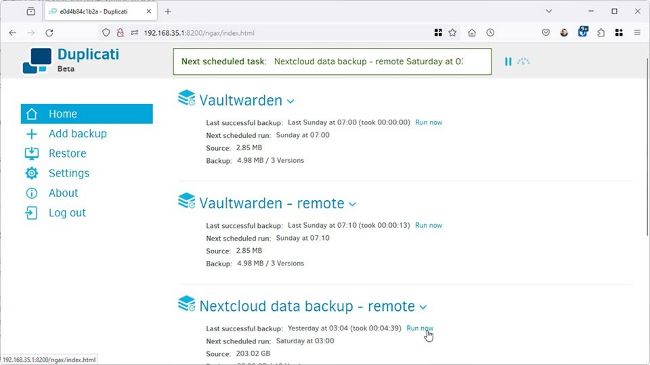
Duplicati can handle local and offsite backups.
© DUPLICATI, MICROSOFT,
BACK UP PERSONAL FILES AND FOLDERS
When it comes to protecting your personal data, you have two choices: a traditional regular backup of specific files or folders to a local hard drive using a schedule, or a sync-based option that typically backs up data to the cloud or on a network device in real time. The latter ensures your critical backups are always virtually up to date, while also retaining earlier versions for additional redundancy. Examples of sync-based storage include OneDrive, Google Drive, and the self-hosted Nextcloud.
We recommend mixing both methods for additional protection—OneDrive users should consider using the main client rather than rely exclusively on Windows Backup. Like all cloud-based clients, you’ll need to ensure all data you wish to be backed up resides in the client’s parent directory, such as C:\ Users\Username\OneDrive or D:\Nextcloud).
When it comes to backing up files locally, you have a choice of two approaches: Duplicati (https://duplicati.com), or Hasleo Backup Suite (www.easyuefi.com), both of which are free. Duplicati installs as a web-based service, so is configured through your browser—see the May 2023 issue for a complete tutorial on using it. One compelling reason to choose Duplicati is that you can store backups both locally and online through many cloud storage services, including OneDrive, Google Drive, Dropbox, and Mega.nz. Better still, these backups can be encrypted separately, so you don’t need to trust your cloud provider’s own security.