HOW TO...
Transfer your files from Windows 10 to 11
By Nik Rawlinson
What you need: Laplink PCmover Time required: Several hours
The cheapest way to upgrade from Windows 10 to 11 is to use Microsoft’s Windows 11 Installation Assistant, which you can download for free from www.snipca.com/55926.
However, if your computer doesn’t support Secure Boot and lacks TPM 2.0, that won’t be an option because your hardware will be incompatible with Windows 11. If you’re not sure whether your computer supports the newer operating system, download and run Microsoft’s PC Health Check program (www.snipca.com/55927, pictured right).
That said, if your computer is feeling its age, the imminent demise of Windows 10 on 14 October (see our Cover Feature on page 50) is a great reason to upgrade even if your old PC is compatible. You can buy a new Windows 11 PC for as little as £500 and it’s likely to be quicker, safer and – aside from any updates – ready to use right away. But what happens to your existing data? Unless you want to carry on using your old and new machines side by side, you’ll need to transfer it to your new PC or laptop. Again, you have two options. One would be to move it directly, either using a high-capacity storage device, like the 256GB Sandisk Ultra Fit stick (£23 from www.snipca.com/55945, pictured below right), which is small and discreet enough to leave permanently connected to your computer.
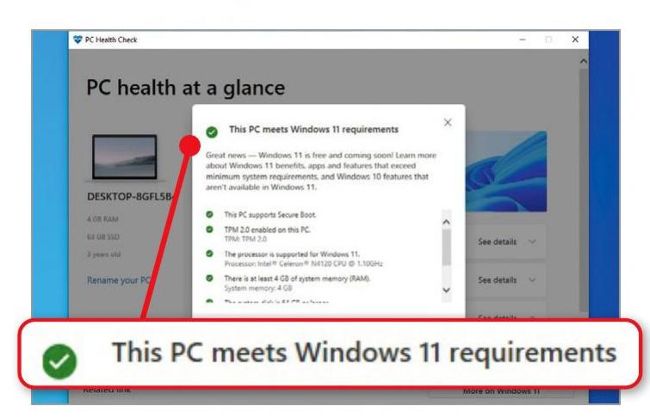
Microsoft’s free PC Health Check program tells you if your computer can run Windows 11
Another option would be to transfer the data over your local network. Laplink PCmover is designed specifically for this task. The US company behind it, Laplink, has been making data-transfer software since 1983, when you had to connect two machines using either the printer ports or a dedicated communications connector called the serial port.