Problems Solved
Our experts solve all your tech problems
Email us your problem and we’ll try to help: noproblem@computeractive.co.uk
PROBLEM OF THE FORTNIGHT
Why do my labels come out wonky?
Q For years I’ve printed labels on my Windows 11 computer using Office 2019, Avery labels and my HP Envy 5530 printer with no problems. Recently, for some reason the printer drivers disappeared. I reinstalled them, but now the alignment of what I want to print bears no relation to the labels.
I’ve reset the alignment in the printer settings and updated the drivers, but to no effect. Any ideas?
Alan A Wynyard-Simpson
A This is one of those annoying problems that we’d probably figure out quickly sitting at your PC but is difficult to diagnose from afar. That’s because it will almost certainly come down to some minor setting that requires flitting through numerous boxes.
You say you’ve explored the printer settings, but have you drilled down into Microsoft Word’s configuration? It’s important to ensure there isn’t a mismatch between what Word thinks it’s printing and what the printer is set up for. To do that, open Word, then click the Mailing tab, followed by Labels. Next, click the Options button and, in the ‘Product number’ list in the Label Options box that appears, ensure you have the right label type selected. Also take note of the data in the ‘Label information’ section – and in particular the ‘Page size’ stats (see screenshot 1 above).
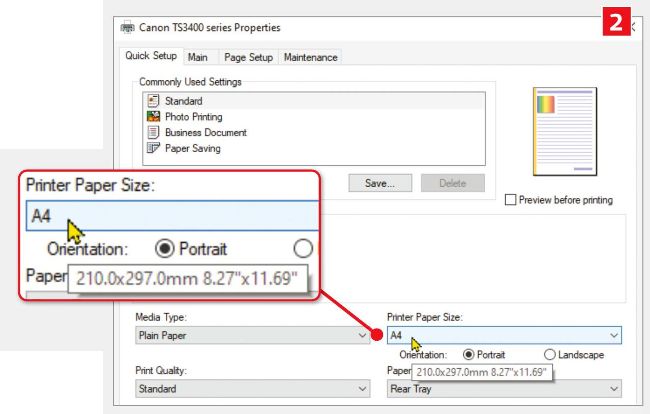
Check that the paper size in your printer’s Properties box matches what it says in Word
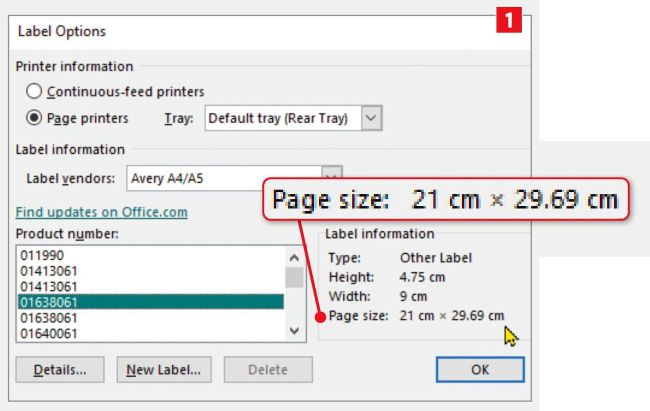
Make a note of the page size in Word’s Label Options box
Chances are that your labels are A4 size (21x29.69cm), but they could be something else, like Letter (21.5x27.9cm, sometimes rounded up to 22x28cm). Now open your printer’s Properties box (in Word, click File followed by Print, then Printer Properties) and ensure that the Printer Paper Size option is a match for what you just noted down above (see screenshot 2 below). Now try printing some labels (although we’d suggest using a blank sheet of paper first as a test, as that will be cheaper than wasting your labels).
We think this will do the job but, if things are still out of whack, we’d suggest manually measuring and configuring your label stock. This is a right faff but you only need to do it once – and it ensures that the dimensions are exactly as they need to be.
To do this, return to the Label Options box and once more click Options. This time, click the New Label button to open the Label Details box. Type a name for your label and then dig out your tape measure. Now follow the instructions at the top of this box to precisely measure the various margins and pitch distances for your labels, entering the figures into the relevant boxes below. You can even do this for the page size, if needed, by choosing Custom from the ‘Page size’ dropdown menu. Click OK to close the Label Details box.
Finally, once more check that your Printer Paper Size dropdown matches the ‘Page size’ dropdown in Label Details, and then try printing again.