Recreate classic retro platform games
Recreating classic games is easy for Andrew Smith. He finds avoiding pixel-art bad guys somewhat more difficult!
PYTHON
Credit: https://github.com/mx0c/super-mario-python
OUR EXPERT
Andrew Smith is a software Developer for NHS Digital. He enjoys scripting in Python and playing video games.
QUICK TIP
When practising with new or unfamiliar code, always back up the file you are practising with, so if anything goes wrong, it is easy to recover.
During the early to mid-’90s, platform games were incredibly popular on game consoles. The king of the platformer was Nintendo and iterations of Mario games were rolled out for the Nintendo Entertainment System and Super Nintendo Entertainment System. This means that, even today, people still love to play Super Mario Bros and its ilk in a staggering array of variations.
For this instalment, we are looking at a Python project created by Marius Bauer (https://github.com/ mx0c) that aims to ape the original Super Mario World video game. We’ve modified and adapted the code for the benefit of this tutorial and are using replacement original sprites and game titles to appease the legal eagles. The original (unmodified) source code and resources can be found at the following Git: https:// github.com/mx0c/super-mario-python.
The aspects of the project that we’re covering in this tutorial include looking at the overall structure of the project, the video game menu, loading game characters by sprite sheet and looking at the code that controls how the video game characters are moved in the game program. Before we can do any of this, though, we first need to make sure we have the correct environment set up.
Let’s go!
We’ll install and set up Python 3.10 for the benefit of this tutorial. For those who have Python/PyGame already installed, Python 3.8+ should be a good enough version to use with this tutorial. Type the following to install Python 3.10 and PyGame:
$ sudo apt-get update
$ sudo apt-get install python3.10
$ sudo apt-get install python3-pip
$ python3.10 -m pip install pygame
$ python3.10 -m pip install scipy
(The last line is needed for this tutorial.)
To make sure you are calling the correct Pip version, check in the Scripts folder of the Python installation folder. There maybe a version number of Pip to use – for example, Pip3.8.
Check the Python version and PyGame version, then git clone from repository:
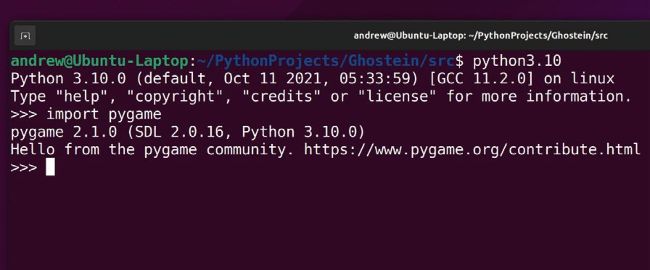
Here you can see the successful installation of Python 3.10 and PyGame after going into the Python interpreter.