Escape Windows 10
Save all your old PCs! Nick Peers reveals how to give them a new lease of life with Linux Mint.
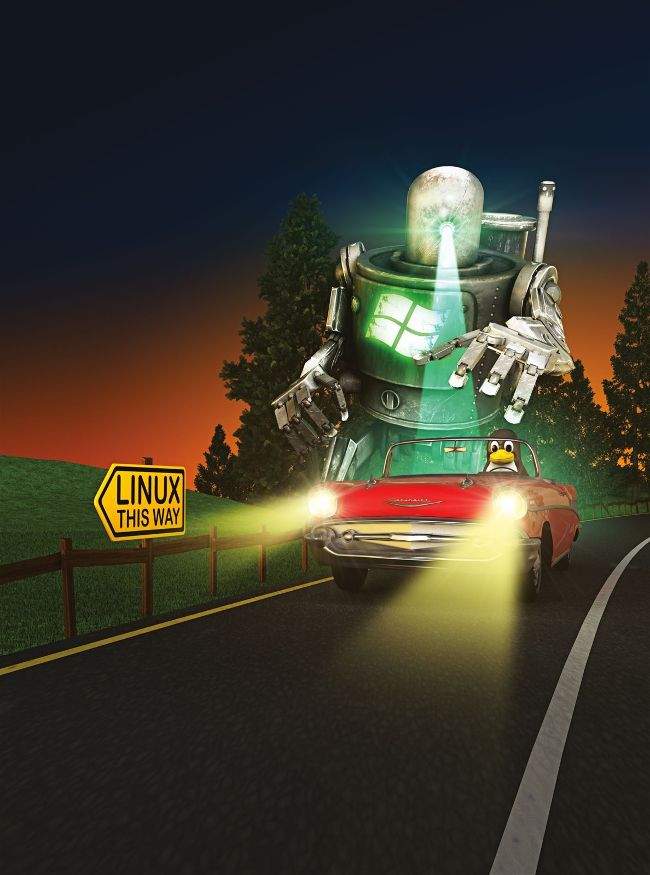
CREDIT: Magictorch
You’ve probably received at least one email telling you that the end is nigh for Windows 10. Microsoft wants you to buy a new PC and upgrade to its privacy busting Windows 11, packed with intrusive tracking, unwanted AI and a host of other unwelcome features. It’s tantamount to putting a gun to your head and saying, “Upgrade – or else!”
But what if we showed you another way? One that doesn’t just mean you get to keep your PC, but also enjoy a significant performance boost – all within an environment that’s familiar and easy to master? If you’re not aware, let’s just say one word: Linux. This isn’t 2005 – Linux is powerful, user-friendly and popular. It’s still open source, which means there’s no ads or tracking. It offers a variety of distributions and desktops, enabling you to choose the perfect version for your needs. And you don’t need a degree in computer engineering to use it.
We’re going to introduce you to one of the most popular Linux distros of all: Linux Mint. Mint is perfect for most people because its default desktop environment – Cinnamon – feels familiar to anyone who’s used Windows 10. It’s easy to navigate, and armed with this guide, you’ll not only wave goodbye to Windows 10 without so much as a backwards glance (other than to transfer all your personal files across), but you’ll be taken on a tour of how it – and Linux – works, giving you the basics you need to start using your new OS. You’ll find out where to find the apps you need, how to put a fail-safe backup in place so you can’t go wrong, plus set it all up to your tastes.
So, wave goodbye to spamming, unwanted advertising and frequent nags to pay for an upgrade. Welcome to the world of Linux, with a side of Mint.
Prepare your old PC
Use this opportunity to invest in some inexpensive hardware upgrades before installing Linux.
Any PC capable of running Windows 10 (or even earlier) should be able to run Linux. In fact, the mere act of switching your computer to Linux Mint is going to give it a performance bump. That said, if you’ve been getting by with 4GB of RAM, now would be a good time to investigate at least doubling that amount – use a website such as http://uk.crucial.com/ upgrades to determine what RAM you need, or use a tool like HWiNFO (www.hwinfo.com) to identify your current memory modules (look under Motherboard on the System Summary screen). A DDR4-2400 8GB stick of RAM costs as little as £15, for example.
As Windows 10 support is coming to an end, we’re going to assume you have no plans to continue using it on your PC. If the idea of running Linux Mint alongside Windows 10 is more appealing, you need to explore setting up a dual-boot system – we covered this in last month’s feature on installing Ubuntu 25.04. In this feature, however, we’re waving goodbye to Windows and setting up Mint as your PC’s only operating system.
Upgrade your drive
This begs the question of what happens to your Windows installation (and all the files on it). Rather than wipe the drive clean, why not use this as an excuse to replace the drive – a good idea if your existing hard drive is at least five years old. You can give your new Linux install a boost by investing in a fast SSD hard drive. These 2.5-inch SATA drives are designed to slot seamlessly in place of any existing boot drive, including ancient 3.5-inch models with spinning platters that take an age to boot and load software.
If there’s a spare slot (and a spare SATA power plug from your PSU and SATA port on the motherboard), you can fit your new boot drive alongside your existing drive, which enables you to keep that old drive as a failsafe (or as a backup drive) once you’ve copied your personal files from it to your new Linux installation. If there isn’t room for another drive – perhaps you’re switching to Mint on a laptop – you’ll simply have to swap out your old drive for new when the time comes. Like adding RAM, investing in a new SATA SSD drive isn’t going to break the bank – you can pick up a spacious Crucial BX500 drive for around £30 (500GB) to £50 (1TB) depending on your storage needs.
Reuse your old drive
If you’re unable to fit your new drive alongside the old one (very likely the situation with laptops), you need to ensure you can retain access to the old drive after installing Linux, so you can copy your personal data across. The simplest option here is to invest in a USB 3.0 drive enclosure for your old drive – 2.5-inch enclosures can be had for under £10 on eBay, while 3.5-inch enclosures for older drives tend to cost from £15 upwards, for example. Your Linux Mint installation will be able to read your Windows-formatted drive easily, making it easy to copy files off the drive or simply access them as and when you need them.
CREATE BOOTABLE INSTALLATION MEDIA
To install any flavour of Linux on your system, you need either a spare USB flash drive (4GB for Linux Mint Cinnamon Edition) or blank DVD. Each Linux distro is delivered as a single ISO file, which can be burned to disc directly in Windows itself (right-click the ISO file and choose Burn Disc Image) or copied to a blank USB flash drive with the help of third-party software. Go to https://linuxmint.com/ download.php to download Linux Mint Cinnamon Edition.
If you plan to go with the latter option – USB flash drives boot Linux far quicker than DVDs – download the portable version of Rufus (https://rufus.ie/en/). Once launched, click Yes twice when prompted, then select your USB flash drive from the Device dropdown menu. Click the Select button to the right of Disk Or ISO Image (Please Select) to locate and select your download Mint ISO file.
Change the partition scheme to GPT – the target system should change to UEFI (Non CSM). All other settings can be left as they are. Click Start, leave ISO selected as the write mode when prompted, and click OK again. Review the final warning and click OK. Once the drive has been created, click Close.
If you want to test multiple Linux distros, check out Ventoy (www. ventoy.net) instead of Rufus. This makes it easy to boot multiple distros from a single flash drive (make sure the drive is large enough – each ISO usually takes up 4-8GB of data, so a 64GB flash drive is a comfortable minimum for five or more distros). Once Ventoy is installed to your flash drive, simply copy ISO files to the drive – you can then choose which one to try when booting from the drive.