Photos
Fix photos with Apple’s tools
Overcome issues with tone, colour and composition
YouriPhone (or digital camera set to Auto mode) will do its best to capture an image that is correctly exposed and focused on the main subject. It’ll also try to balance the colours so that they are not too cold or too warm.
However, certain scenarios, such as contrasting lighting, can risk some areas becoming overexposed or underexposed. Newer iPhones automatically snap a rapid series of separate exposures when faced with high contrast subjects. These images are then merged as a single HDR (High Dynamic Range) photo featuring detail in the shadows, midtones and highlights. Despite your iPhone’s sophisticated image processing powers, some photos will still need attention in the Photos app’s digital darkroom to make them look their best. Open a pic and click Edit to get started.
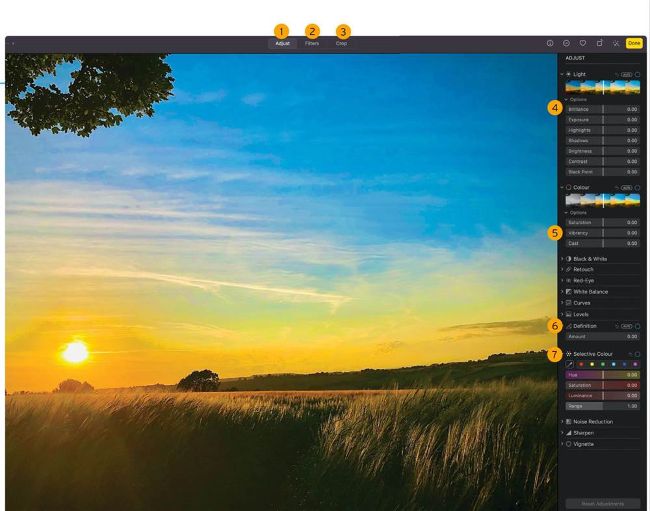
Image credit: Apple Inc
Adjustments explained
1
Adjust The Adjust button gives you access to a suite of photo-fixing tools that’ll help you overcome common problems.
2 Filters Here you can adjust a photo’s overall look in a click. It’s handy if you’re in a hurry, but no substitute for manual adjustments.