COVER FEATURE
Ditch Your PASSWORD MANAGER
Don’t trust your browser to store your login data – switch to a safer and smarter password manager. Robert Irvine tests 20 and recommends the best three
Some people say the safest place to store passwords is in a notebook. After all, a pen and paper can’t be hacked. But in practice, writing down full login details for every website and app you use is a tedious task that’s not without risk.
WHAT YOU CAN DO
• Sign into your online accounts automatically
• Sync your passwords across your PC, phone and tablet
• Securely store all your personal information
• Identify weak, reused and compromised passwords
• Generate stronger passwords for your accounts
• Log into websites using passkeys and 2FA codes
• Avoid spam and scams by using email aliases
• Give trusted people emergency access to your passwords
Many sites now insist you use long, complex passwords containing numbers and special characters, which leaves plenty of scope for error in your notebook jottings. Entering a ‘1’ instead of an ‘l’ or a ‘0’ instead of an ‘O’ will prevent you from accessing an online account.
It’s therefore wiser to save your logins in a password manager, so you can fill in those username and password boxes automatically. The easiest option is to use the tool built into your web browser, such as Google Password Manager in Chrome.
However, for reasons we explain opposite, it’s much safer and smarter to use a dedicated password manager. There are dozens to choose from, including free, freemium and paid-for options, with different benefits and restrictions.
Here we’ve tested 20 popular password managers to find the best tools. We considered factors such as ease of use, features, versatility and value for money to decide our top three, as well as three runners-up. We also show you how to make using your chosen password manager as simple and secure as possible.
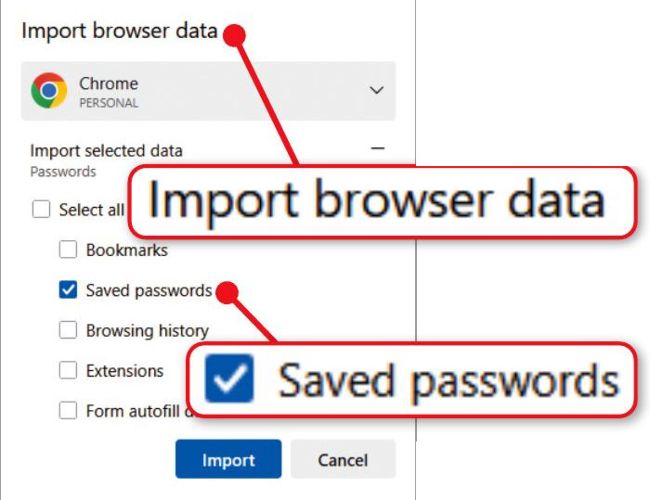
Passwords you import to your browser won’t update automatically
WHY YOU NEED A
PROPER
PASSWORD MANAGER
Use zero-knowledge encryption
The built-in password managers in Chrome, Edge and other browsers offer only basic protection of your credentials. Entering the password or PIN you use to sign into your computer is usually enough to reveal your passwords. This means anyone who knows your PC login can also access all your passwords. Mobile browsers are more secure, because they protect your passwords using your device’s biometric screen-lock method, such as your fingerprint or face.
Although your synced passwords are encrypted through your account with the respective services, Google Password Manager (used by Chrome and Android) and Microsoft’s password manager don’t provide end-to-end encryption by default (Apple and Mozilla do). To activate it, you need to set up on-device encryption through the password manager’s settings (see screenshot above right).
In contrast, dedicated password managers protect your logins automatically when you set up your master password. They secure your password vault using zero-knowledge encryption, which means they can’t see your data, and passwords you sync online are protected using end-to-end encryption. Only you can decrypt them by entering your master password.
What’s more, standalone password managers aren’t at risk from the security threats that target browsers, including malicious scripts and extensions, phishing attacks and vulnerabilities in the software itself. And, unlike Chrome and Edge, they don’t collect your data or track you online.
Store all your personal data securely
The best password managers go beyond storing website and app logins, and protect your other personal data too. This includes your phone number, home address and payment-card details, and lets you auto-fill that information in online forms.
Most browsers store these details separately from your passwords, without any form of encryption (card details are partially concealed by asterisks). They also lack the option to save secure notes containing sensitive information such as your Wi-Fi password, passport and insurance-policy numbers.
Auto-fill passwords across devices
Some built-in password managers auto-fill data only in the browser, not in mobile apps. You can set most dedicated tools as the default auto-fill service on your Android or iOS device to fill in usernames and passwords on all supported apps (see page 56). In fairness, Google Password Manager and Apple Passwords (via iCloud Keychain) also do this, but they’re limited in other ways.