Photo Answers
Going batty over blowouts? Ignorant about interlacing? Send your technique and camera questions to digitalcamera@futurenet.com
Andrew James is a highly experienced photographer and writer – if you have a problem, he can help.
Toning it blue
Q
How can I give an image a moody, blue tonal quality in Lightroom Classic?
Lesley Farmer
A
There are several ways you could do this, but I am going to tell you my favourite – which also happens to be one of the quickest. First, convert the colour image to black and white, then open the Color Grading Panel in the Develop Module. I prefer to adjust both Shadows and Midtones by dragging the target from the centre of each respective circle into the blue zone. You’ll need to play about a bit to see what works with your image. Then you can also use the Luminance, Blending and Balance sliders to adjust further to your tastes. If you want a more subtle blue tone, adjust either Midtones or Shadows on their own, although I tend to find it works better with just the shadow areas toned.
If you want to do this with a colour image, you need to be careful it doesn’t look like a mistake, rather than a deliberate effect. However, if you have an image taken early in the morning that is naturally quite blue, you can enhance it to give it more mood – although simply taking the White Balance slider to the left to cool it down even more might be all that is needed.
Whichever method you choose, don’t forget to save it as a Preset, so you can recreate it at the click of a button whenever you want.
Shadows and Midtones
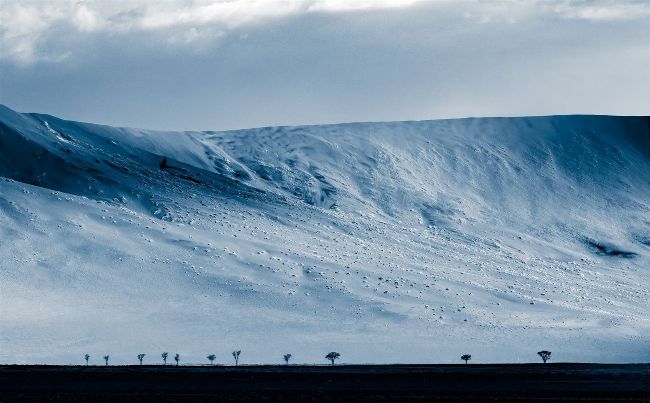
One scene, two ways: after converting a scene to black and white, use Lightroom’s Color Grading Panel to introduce blue to the midtones and shadows
Just Shadows
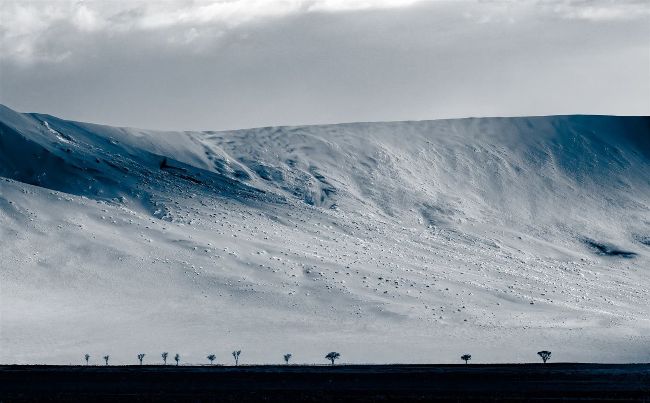
Adding it just to the shadows is more subtle.
Andrew James