PROBLEM OF THE FORTNIGHT
Problems Solved
Our experts solve all your tech problems
Why does System Configuration miscount my processor’s cores?
Q I read some advice online recently that suggested a way to speed up an old laptop. The first step was to open the System Configuration box by pressing Windows key+R, typing msconfig (see screenshot 1 ) and then pressing Enter. Next, choose the Boot tab, click the ‘Advanced options’ button 2 then tick the ‘Number of processors’ box before choosing the highest number available from the dropdown menu 3 .
I tried this on my 2012 Dell laptop, but I didn’t see any improvement. However, I did notice something odd. This laptop has an Intel Core i7-2630 with four cores and eight threads. However, the maximum number of processors I could select was eight, not four. The same thing happened when I repeated the process on my other computer, which has an Intel Core i3-2130 with two cores and four threads. In this case, the highest number of processors, according to System Configuration, was four.
I don’t understand what’s happening here. First, why is this setting unticked? And second, why is Windows totting up the cores incorrectly? Brilliant magazine, incidentally.
John Buchanan
A
You didn’t tell us where you read this advice. However, while we imagine it was well-intentioned, we’re afraid it’s inaccurate.
That’s because this feature has nothing to do with speeding up a computer. In fact, it does the complete opposite of what you want, because it’s designed to limit the number of processor cores Windows can use. With the option left unticked, Windows can use as many cores as the processor has, so is determined by the operating system’s needs at any moment. This is the default setting and is obviously the best one in almost all circumstances.
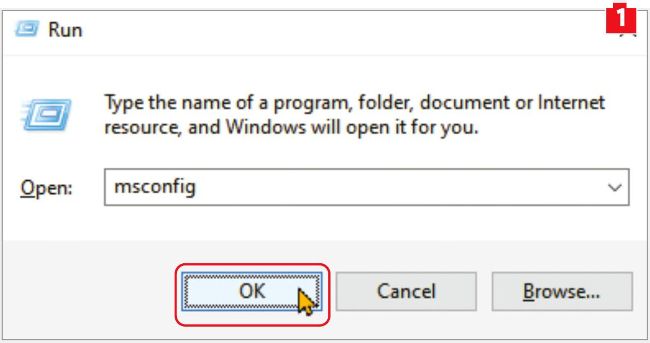
Type msconfig in the Run box to access Windows’ settings…
The option you describe exists primarily for troubleshooting or testing purposes. A software developer, for example, might want to limit the number of cores available to test how an app works on systems with lower specifications. You could also use it to limit the amount of power the processor uses, potentially extending a laptop’s battery life. However, it won’t speed up your PC unless for some reason the box is already ticked and Windows is not using all the available cores – in which case removing the tick could speed things up.
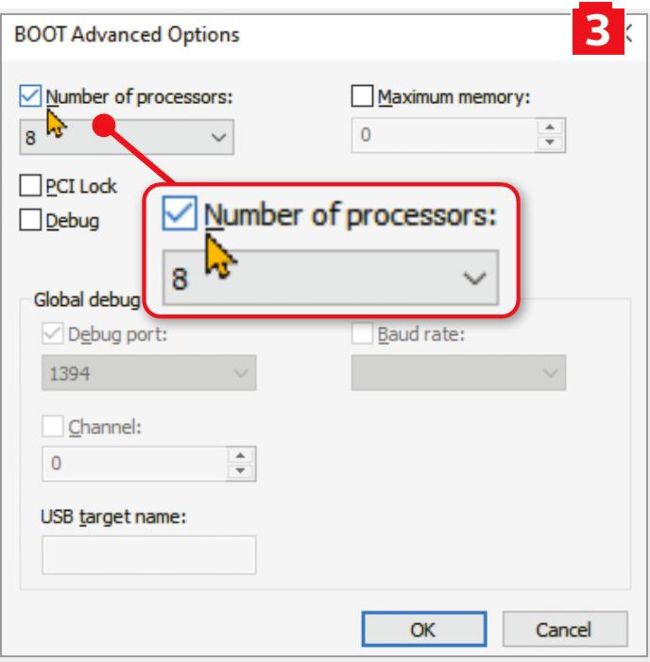
…Then tick this box to limit the number of cores Windows can use

…On the Boot tab, click ‘Advanced options’ to tweak how Windows works…
To understand the apparent mismatch between the number of cores in your CPUs and the numbers listed in System Configuration’s dropdown menu, you need to know what Windows means by a ‘core’. Put simply, when a processor supports hyper-threading technology, each core can handle two threads. From Windows’ point of view, each thread is a ‘logical’ processor core. So a processor with two physical cores and four threads has four logical processor cores. A processor with four cores and eight threads is seen as having eight logical processor cores, and so on.