Twenty years of WordPress websites!
In the first part of this new series, Michael Reed takes a look at what the content management system WordPress can serve up.
WORDPRESS
Credit: http://wordpress.org
Part One!
Don’t miss next issue, subscribe on page 16!
OUR EXPERT
Michael Reed started with HTML website design while skipping between free ISP trials and using Mandrake Linux back in the ’90s. These days, he’s more of a WordPress and Ubuntu man.
QUICK TIP
As soon as you start working with this tutorial, open a plain text file to make notes about things such as the usernames, passwords, folder names and IP addresses you’re going to rack up.
WordPress is a CMS (content management system), and it’s 20 years old this year. It W started life as a simple blogging platform but, over the years, its versatility has been greatly expanded by the developers. As well as its central purpose as a blogging tool, it can host a huge variety of apps and plugins. These mean you can use WordPress to set up forums, galleries and, well, pretty much anything that involves making content available online.
Quite often, when people have an online project in mind, they use WordPress as the starting point to organise collaborative facilities. There is some flexibility as to how you install WordPress, and once installed, you can customise how it looks and works. You can then add plugins that greatly extend the functionality with things such as forums, to-do lists and calendars that help pull together an online community. We’ll cover such projects over the course of the series.
Local installation
We’ll start with the traditional method of hosting WordPress on your own server using the Apache web server. It’s a good place to start because it will familiarise you with how WordPress hosting works. These examples assume you are running a Debianderived Linux distro such as Ubuntu, but the overall procedures are the same for any normal Linux distro, even if the odd package name is slightly different.
WordPress hosting doesn’t necessarily need a powerful computer. The actual amount of required processing power or RAM depends on how many clients you have to serve simultaneously. If you only expect to have a few people accessing the site at once, any computer with around 4GB of RAM should be sufficient. This includes a Raspberry Pi. If your traffic expectations are modest, there’s nothing wrong with installing the server on to your main PC or a virtual machine running on a virtualiser such as VirtualBox.
You don’t even need physical access to the VM or computer running the server, as you can SSH into the server for the first part of the tutorial, then access the WordPress install via a web browser for configuration and management. See your distro’s instructions if you’re unsure about how to set up an SSH server.
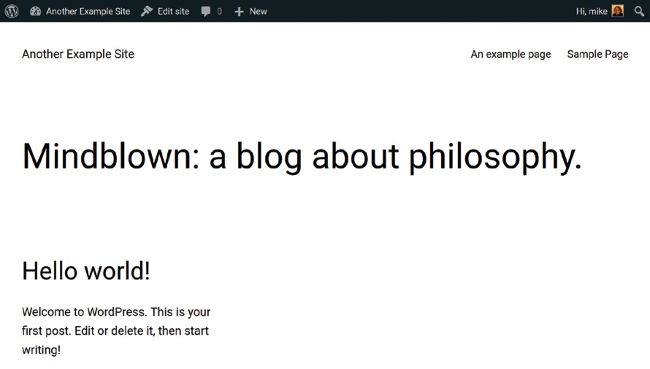
These days, WordPress defaults to a fairly minimalist look that makes a lot of use of white space.