Master Keynote for exciting presentations
There’s no better app for making interesting and informative slideshows
Keynote was originally created for Steve Jobs to use in Apple presentations, but it was released to the public in 2003 and it’s been free for anyone with a new Mac or Apple mobile device since 2013. It’s easy to use, and can create amazing results.
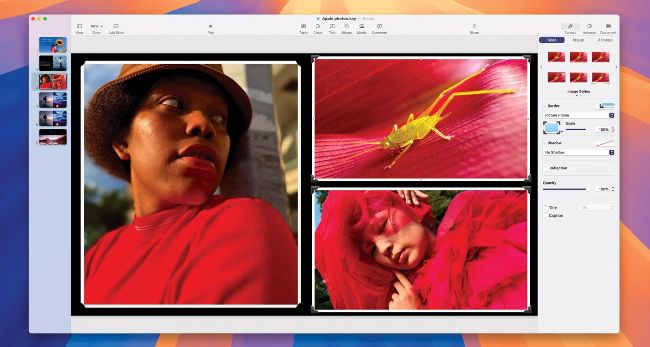
Picture frames are a great way to display photographs in your Keynote presentations.
1 Themes
All Keynote presentations start with a theme, that is, a set of slide layouts which you can customise to suit your requirements. When starting a new Keynote document, choose a theme from those on offer, and don’t forget to set the aspect ratio you’re planning to use, in the top-right corner of the theme chooser. Choose from 16:9 (widescreen) or 4:3 (standard), depending on the size of the device on which you plan to show your presentation.
2 Add slides
You can add as many slides as you like to the presentation. Click the Add Slide icon in the left-hand side of the toolbar to open a chooser showing slide layouts from the theme you chose. Click on one to add it to your slideshow. You can choose a specific slide several times over if necessary.
3 Move/remove slides
If the left-hand sidebar isn’t showing, click View (top left) and turn on the Navigator, which shows thumbnails of your slides. Click on a thumbnail and click Delete to remove it. To reorder the slides, drag and drop them into your chosen order.