iPadOS 26
Tips, tricks & secrets
The best iPadOS yet is a massive upgrade for any iPad Written
by Carrie Marshall
A
pple’s iPadOS 26 is one of the biggest, most important and most user-friendly iPad updates in the company’s history, both in terms of how it looks and how it works. The eye-catching and good-looking Liquid Glass interface that makes any iPad look shiny and new is just the beginning, because under the sparkly bits there are lots of really important improvements as well as some key new apps. And they’re all designed to do one very important thing: make your iPad utterly unique.
This is the most customisable iPadOS ever, with lots of great ways to make your iPad look amazing. It’s the most productive iPadOS ever, with lots of tools and tweaks to help you get stuff done and tame your to-do list. It’s the most connected iPadOS ever thanks to the new Phone app, a massively enhanced Messages app and the new call screening tools. And it’s the most Mac-like iPadOS ever thanks to its vastly improved window controls and multitasking.
Over the next six pages, you’ll discover all the best bits of iPadOS 26 for work, for play, and for sharing great things with your friends, family or colleagues. We’ll reveal what’s new in Apple Intelligence and its clever communications, smarter Shortcuts and much more useful Reminders; you’ll have fun with that glorious Liquid Glass interface; and you’ll discover how you can customise the big stuff and the little things to make your iPad completely you.
Customise your iPad
Make your iPad utterly unique
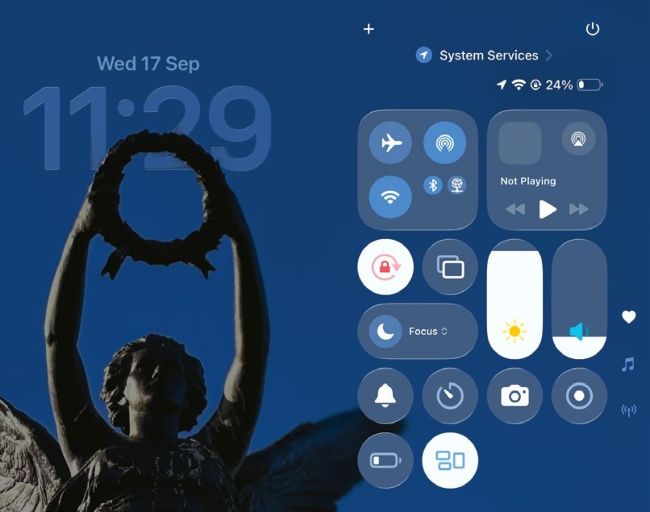
You can customise Lock Screen widgets, wallpaper, colours and the controls that appear in Control Centre too.
The Liquid Glass interface is the biggest visual iPadOS overhaul in a decade, and one of the things we like best about the new design is that it’s very customisable. You can decide whether apps should run in full screen or in windowed mode; whether your icons should be normal, dark, glassy or tinted; use widgets to provide key information or controls on your Lock Screen and Home Screen, and so much more. You can make icons larger or smaller, change what’s in Control Centre, decide what to be notified about and how you’re notified, and customise the options that come up in the Share menu too. Together all those features mean that you can make your iPad truly yours.
The customisation starts when you wake your iPad from sleep: you can create custom Lock Screens with different wallpaper or photos, colour schemes and widgets, and you can link them to Focus modes – so you can have a different Lock Screen for work and for me-time. And once your iPad’s unlocked you’ve got complete control over the apps and folders and widgets – and you can hide apps to keep the kids out or just stop other people from poking around your Photos library.