FEATURE Fast fixes for Mac
Help! My accessories won’t work
Hardware peripherals can cause issues. Here’s how to fix your kit
Fix Bluetooth peripheral
issues
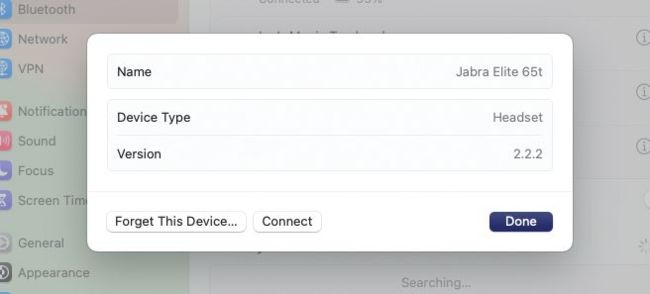
Image credits: Apple Inc
If your Bluetooth peripheral won’t connect to your Mac, turn it off and turn it on again. If that fails, click the Bluetooth icon in your Mac’s menu bar, then click the peripheral name in question to see if you can connect it that way. If this doesn’t work, in the same menu, select Bluetooth Settings at the bottom. This opens System Settings, with Bluetooth already selected. Click on the ‘i’ icon next to the device in question, and then click Forget This Device. Your Mac and the device are no longer paired. Pair it again (dig out its instructions if necessary).
As your keyboard and Magic Trackpad or Magic Mouse are likely Bluetooth peripherals, it’s a good idea to keep a cheap USB mouse and keyboard handy in case you have problems with these input devices. You can pick them up extremely cheaply from charity shops or from car boot sales, and they can be lifesavers if your regular keyboard or mouse/trackpad glitches.