THE PREPERATION STAGE
WHERE DO YOU EVEN START WITH A TASK LIKE THIS?
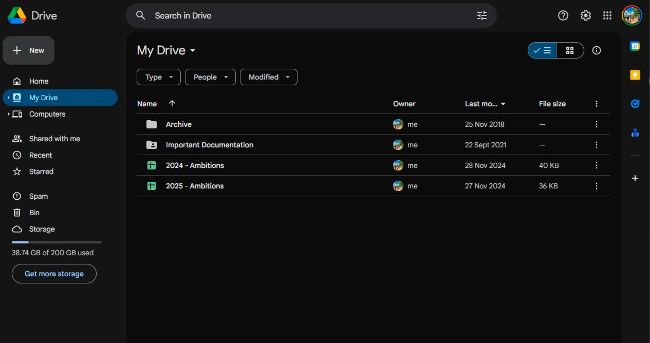
Having a cloud backup takes a lot of the pressure off.
Okay,
we get it—a big reinstall can be pretty daunting on first glance. You’re effectively going to wipe your operating system drive and start from scratch. That means every file, program, and document is going to be effectively erased from existence and scattered into the unknown on your SSD, ready to be rewritten. With that in mind, there’s a ton of prep work that you’re going to want to do on your rig to make this a super-smooth process (you don’t necessarily have to do this on your current rig; you can do it on a laptop or secondary device, but ideally you need a form of Windows running somewhere to get started).
STEP 1
Backup and order
We’re massive advocates of using a twin-drive system, no matter what your ambitions are. Having two SSDs or hard drives of some caliber to keep your most important files separate and safe is incredibly useful, and makes the whole reinstall process super quick and easy.
The first thing we’re going to do in our build is ensure any files we currently have on our Windows system are backed up appropriately. In an ideal world, any large programs (we’re mostly talking about games here) can be offloaded to a secondary drive. If it’s not part of your installation process already, it should be. Installing Elden Ring or World of Warcraft onto a D: drive solely dedicated to games will save you a ton of time later, particularly if you don’t have the fastest internet speeds.
Not only do we use our D: drive for our large programs; we’re also going to use it for temporary storage for other documentation. Go into your documents, pictures, videos, and screenshots, grab whatever imperative files you need, and chuck them onto your secondary drive.
For anything more mission-critical to your well-being and day-to-day life, it’s best to upload these to a well-secured cloud service. We’re big advocates of Google Drive for that. If you have a Gmail or Google account already, then you’ll likely have an unactivated Drive account just sitting there. Simply go to drive. google.com, and upload and organize your files; it’s free up to 15GB, and if you need more space, it’s fairly affordable, with options ranging from $2 per month (100GB) up to $25 per month (5TB). There’s even a desktop-syncing program that acts similarly to Box or Microsoft’s 365 cloud file system if you need it.