Problems Solved
Our experts solve all your tech problems
PROBLEM OF THE FORTNIGHT
How do I remove these duplicate drives?
Q Following some confusion caused by Microsoft’s online links, I’ve eventually upgraded to Windows 11, and I was both surprised and impressed that it seemed to go without a hitch. However, File Explorer now shows some additional drives, which duplicate some existing drives but with different drive letters (see screenshot 1 ). Two are optical disk drives and not a real problem, but two are hard drives and appear linked, so if I add or delete a file from the duplicate drive it has the same effect on the original.
I’ve looked online for answers, but all of the results seem to relate to copies with the same drive letters. I’ve also tried deleting/renaming portions of the registry as directed by some ‘experts’, but these have had no effect – even after rebooting each time.
The original drives are F, G, H and I, while the duplicates are M, N, O and P. Right-clicking these duplicates doesn’t show a Delete option. But even if it did, I fear that that deleting M, for example, would would also result in the original F drive being erased.
Incidentally, Disk Management shows only the original drives (ie, F, G, H and I) and not M, N, O and P. Do you have any idea what’s going on here?
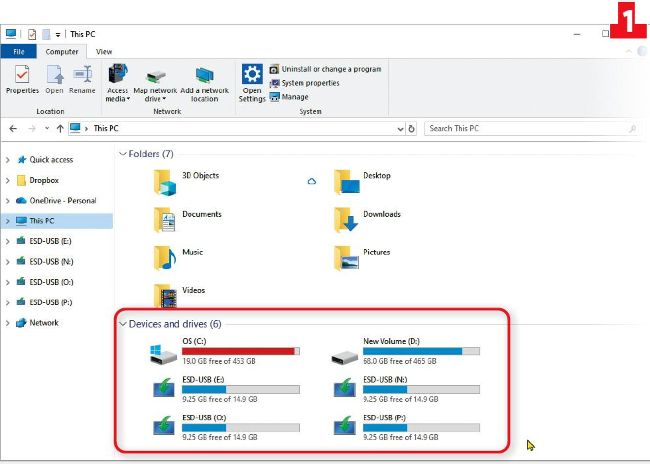
File Explorer is showing duplicate drives with different drive letters
Andrew Blackburn
A What you’re seeing in File Explorer aren’t duplicated drives as such. Rather, M, N, O and P are additional drive letters that have, for whatever reason, been ‘mapped’ to the real drives – just as F, G, H and I also ‘point’ the operating system to them.
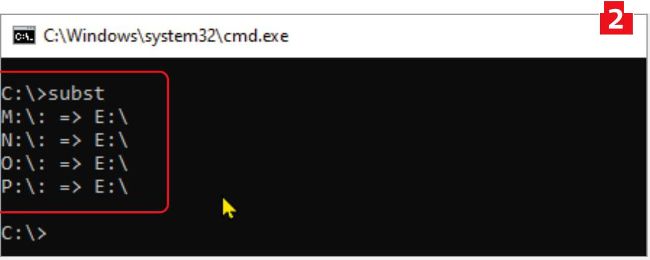
Type subst to see the virtual drives that have been mapped to real ones
This is because Windows allows a single physical drive (or partition, or even folder) to be ‘mounted’ in more than one way. File Explorer simply treats each mounting as a separate drive, with its own drive letter. That, incidentally, is why changes made on M appear immediately on F, and why Disk Management shows only the original drives (F, G, H and I). In other words, there’s only one set of disks – but multiple signposts have been erected to point at them.
We don’t know how or why these mappings appeared, but it’s usually related to third-party tools or utilities – perhaps some form of backup, synchronisation or virtualisation software, for example. Do you have anything like this installed?
We think your additional mapped drive letters were probably created by such a tool, likely as part of some or other automated installation or setup process. They won’t do any harm, but if you want to remove them the registry isn’t the place, because they were likely created using a low-level and little-known command-line instruction called subst (short for substitution).
While you should definitely back up before proceeding, deleting them is pretty straightforward and safe, as the subst command doesn’t deal with data – just the drive mapping and lettering.
First, press Windows key+X to open the Quick Links menu and then click ‘Terminal (Admin)’. Windows 10 users can use an admin-level Command Prompt window. Next, at the command prompt, type subst and press Enter. This will list all the letters that have been mapped virtually to original (or ‘real’) drive letters (see screenshot 2 ). To remove M, for example, type the command subst m: /d and press Enter 3 . To check it’s worked, once more type subst and press Enter. Now just repeat for N, O and P, obviously substituting the m: in the command for n:, o: and p:.